
Start here
Save Gmail receipts as PDF with a reviewable filing routine
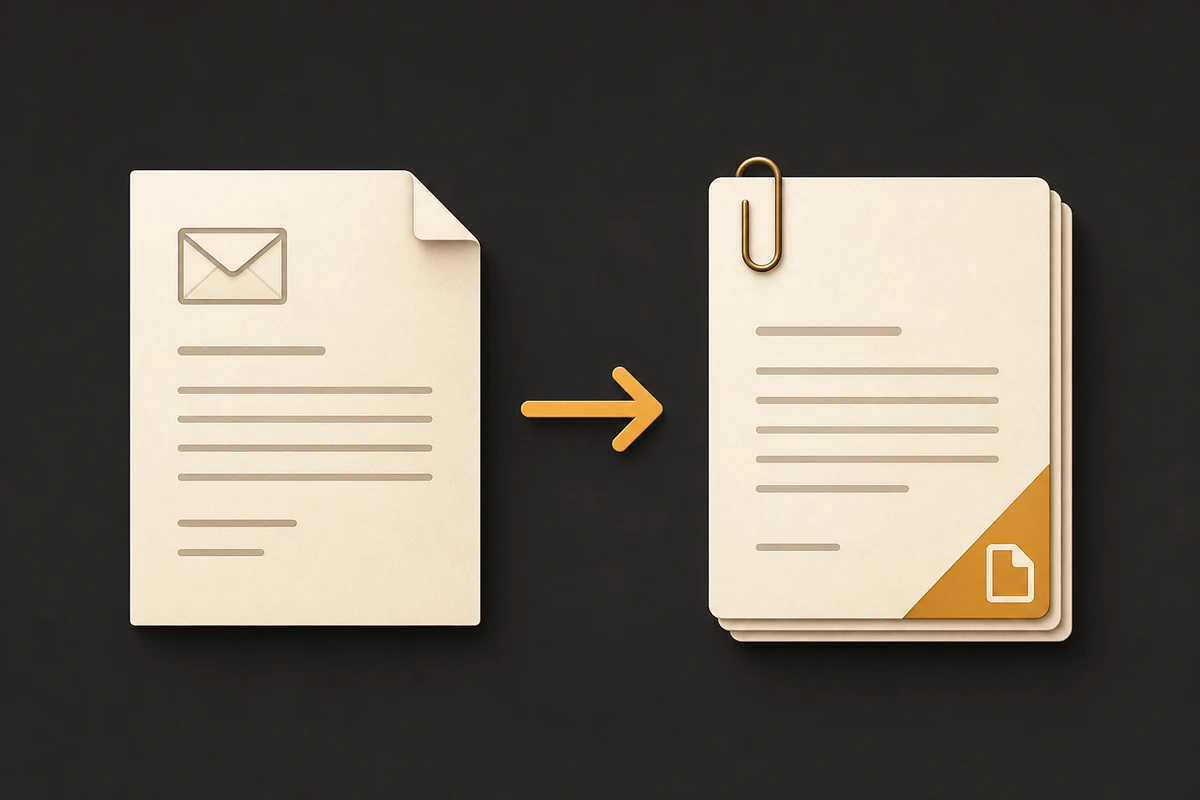
The practical answer to save Gmail receipts as PDF is to separate finding, checking, rendering, and filing. Search for the merchant, order number, or billing period first. Open the message and confirm the sender, date, line items, tax, total, and payment status. Then print the rendered Gmail view to PDF and keep the original message or attachment until the record has been reviewed.
A PDF makes a receipt portable and searchable, but it is not automatically proof that a transaction settled. For accounting, pair the PDF with the order number, the payment statement, or the source attachment when one exists. A short review checklist prevents a clean-looking file from hiding a missing page or an incorrect order.
Know the output
A receipt PDF is a record, not the original transaction file
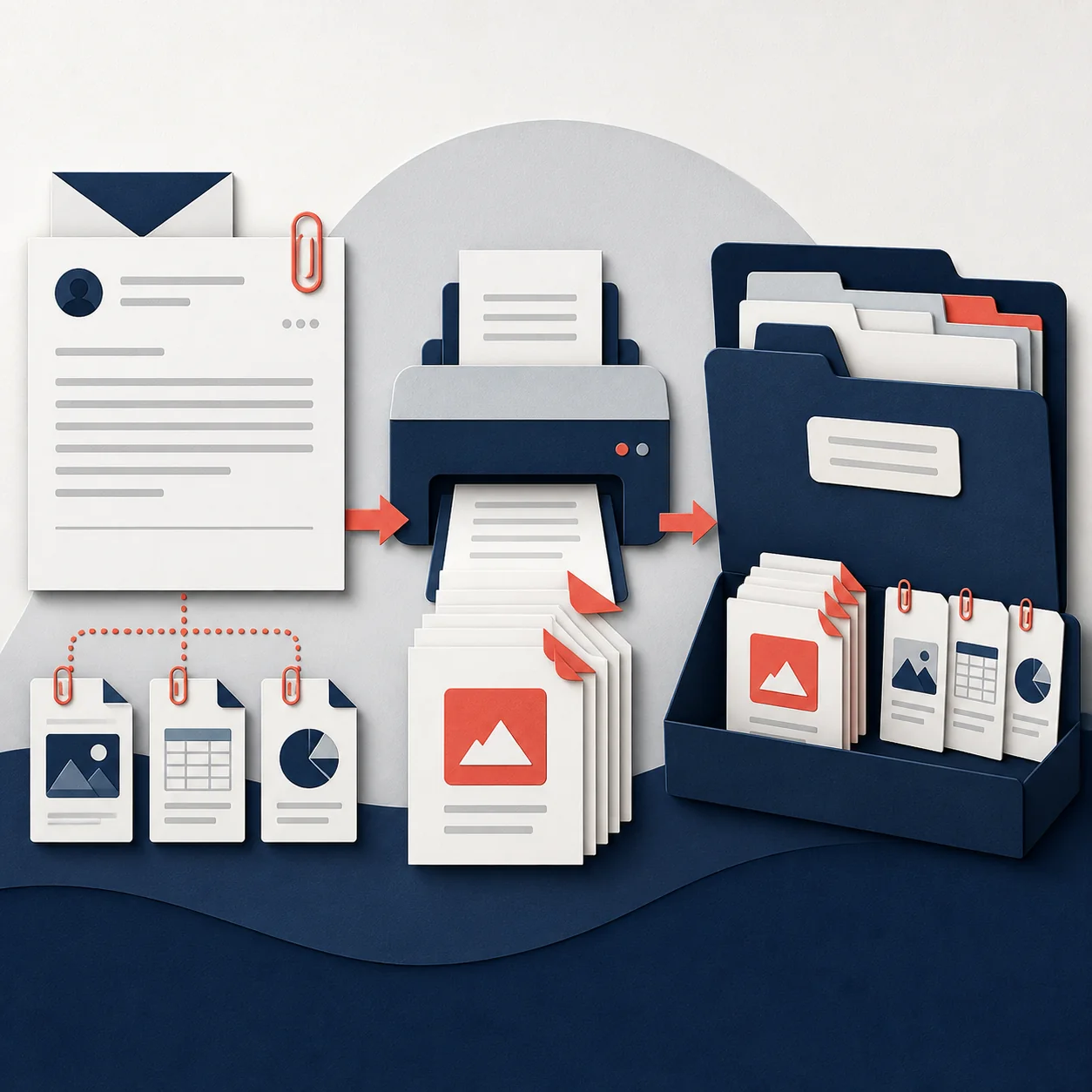
When people say save Gmail receipts as PDF, they may mean three different outputs: a readable copy of the email, a downloaded invoice or receipt attachment, and a folder or ZIP that keeps the evidence together. Decide which output your bookkeeper or expense system needs before exporting.
The PDF should show the merchant, purchase date, currency, line items, taxes, total, and any refund or payment status that Gmail displays. Keep the HTML email or original PDF attachment beside it when it contains a barcode, signature, machine-readable fields, or details that the print view may omit.
Method 1
Use Gmail Print for one receipt or order email
For a single receipt, Gmail Print is usually the fastest route. Open the message, expand any trimmed content, wait for images and totals to load, and use the message print action rather than printing the entire browser window. Choose Save as PDF in the system dialog, then inspect the preview before you file it.
The print view represents what Gmail rendered at that moment. If the receipt is a conversation, decide whether the whole thread belongs in the record or only the order confirmation. Remove unrelated replies from the export when your accounting policy requires one transaction per file.
Method 2
Find and export a batch of Gmail receipts
A monthly or project batch starts with a documented Gmail search. Try combinations such as subject:(receipt OR invoice OR order), from:(billing OR receipts), or a merchant domain with after: and before: dates. Add a label such as Receipts after reviewing the result set so you can explain exactly which messages were included.
Export selected conversations one at a time when accuracy matters, or use a local batch workflow that reports successes and failures. Prefer one PDF per transaction when files will be uploaded to an expense system. A merged PDF is useful for a chronological review, but a single failed message is harder to replace.
Attachment rules
Keep receipt PDFs, invoices, and source attachments linked
Receipt emails often include an invoice PDF, a packing slip, a tax document, or an image. Download those originals separately and use a shared base name, such as 2026-08-18_acme_0421_receipt.pdf. If the attachment is a DOCX, XLSX, or ZIP, keep the source format because a printed page does not preserve editing, formulas, or internal files.
If a receipt is only an HTML email, the PDF can be the main readable record. If an attachment contains a barcode, a signature, or structured tax fields, keep both the PDF and the original. Record a visible warning when an attachment is blocked or cannot be downloaded; do not silently claim the receipt package is complete.
Privacy boundary
Understand what local processing changes
A browser-local flow can keep the selected email, downloaded receipt files, and generated PDFs on the device while account, plan, and billing requests remain separate. That boundary is useful for expenses and invoices, but it is not a legal certification. Check the current permissions and privacy policy before exporting sensitive purchases.
Review the sender, recipient, account number, address, and any personal data before sharing a receipt folder. Restrict the destination directory, remove temporary downloads after verification, and avoid putting full card numbers or private addresses in filenames. Local processing reduces an upload step; it does not remove the need for access control.
Filing checklist
Name receipts so the PDF matches the transaction
Use a stable filename that works outside Gmail: date, merchant, order number or short subject, and a sequence when several files share a day. For example, 2026-08-18_acme_order-0421_receipt.pdf sorts naturally and can be matched to a statement line. Use the same base name for an invoice attachment or an attachments folder.
Clean characters that Windows and shared drives reject, shorten long subjects, and keep a small index with the billing period and review status. A consistent pattern makes duplicate detection easier and lets a finance teammate find the right record without opening every PDF.
Decision guide
Choose the right receipt workflow for your volume
Choose the smallest workflow that preserves the details you need. Print one receipt when a single transaction is urgent. Use a labeled, selected batch when you are closing a month and need a completion report. Use a local export with separate PDFs when an expense system expects one file per line item, and add the original attachments when a reviewer needs the source.
Google Takeout is for broad mailbox portability, not a quick receipt folder. It produces an archive format that needs another step before it becomes readable PDFs. For ordinary bookkeeping, a focused Gmail search, a visual check, and a named PDF package are faster and easier to audit.
FAQ
Questions about Gmail PDFs and attachments
What is the quickest way to save Gmail receipts as PDF?
Open the receipt, expand the needed content, choose Gmail Print, select Save as PDF, and check the preview before filing it.
Does printing a receipt save its PDF attachment too?
No. Download the original attachment separately and keep it beside the email PDF when the source matters.
How can I find receipts for one month?
Use a merchant, subject, sender, label, and after/before date search, then review the result set before exporting.
Should I merge all receipts into one PDF?
Usually keep one PDF per transaction for expense systems. Merge only when a chronological review is more useful than individual replacement.
Can a local receipt export keep email content private?
A local browser workflow can keep selected content and files on the device, but you should still check permissions and sharing controls.
How should receipt PDFs be named?
Use a stable pattern such as date, merchant, order number, and receipt, then reuse that base name for related originals.
Summary
Make the email record and the source files agree
To save Gmail receipts as PDF reliably, search a defined period, verify the merchant and totals, render the visible message, and retain the original source files when needed. File one transaction per PDF when another system will review or reimburse it.
A clear name, a short completion log, and a note for missing attachments turn a folder of downloads into an auditable receipt record. Review a few files from the beginning, middle, and end of every batch before closing the month.
Ready to organize a receipt batch?
Create local PDFs for selected Gmail conversations, then review the names and original files before you archive the expense records.
Open Gmail to PDFOfficial references
- Google Gmail HelpOfficial Gmail guidance for message actions, attachments, and printing workflows.
- Google Account Help: Download your dataOfficial guidance for broader Google data exports with Takeout.