
Start here
How to find all PDF files in Gmail: start with filename:pdf
Open Gmail and search for filename:pdf. That query looks for messages with PDF in an attachment filename and is the best first answer to how to find all PDF files in Gmail. If you want to make the attachment requirement explicit, try has:attachment filename:pdf.
The first result set may be wider or narrower than you expect. Add in:anywhere when you need Gmail to include messages outside the normal inbox views, or add a sender, subject phrase, label, or date range when you are looking for a specific project. Search first, review the matching conversations, and only then decide whether to download original files or export the messages as PDFs.
- Start with filename:pdf for the broadest useful PDF search.
- Use has:attachment filename:pdf when you want to exclude messages that only mention PDFs in their text.
- Add in:anywhere, from:, after:, before:, or a label to reduce noise or include older mail.
- Treat the search result as a selection to review, not proof that every historical file is present.
Continue with the output you need
Search syntax
Search PDF attachments in Gmail with filename:pdf
Gmail search becomes much more useful when you combine one file-type filter with one scope filter. The examples below are deliberately plain: copy one into Gmail, check the result count, then add another condition only if the list is still too large.
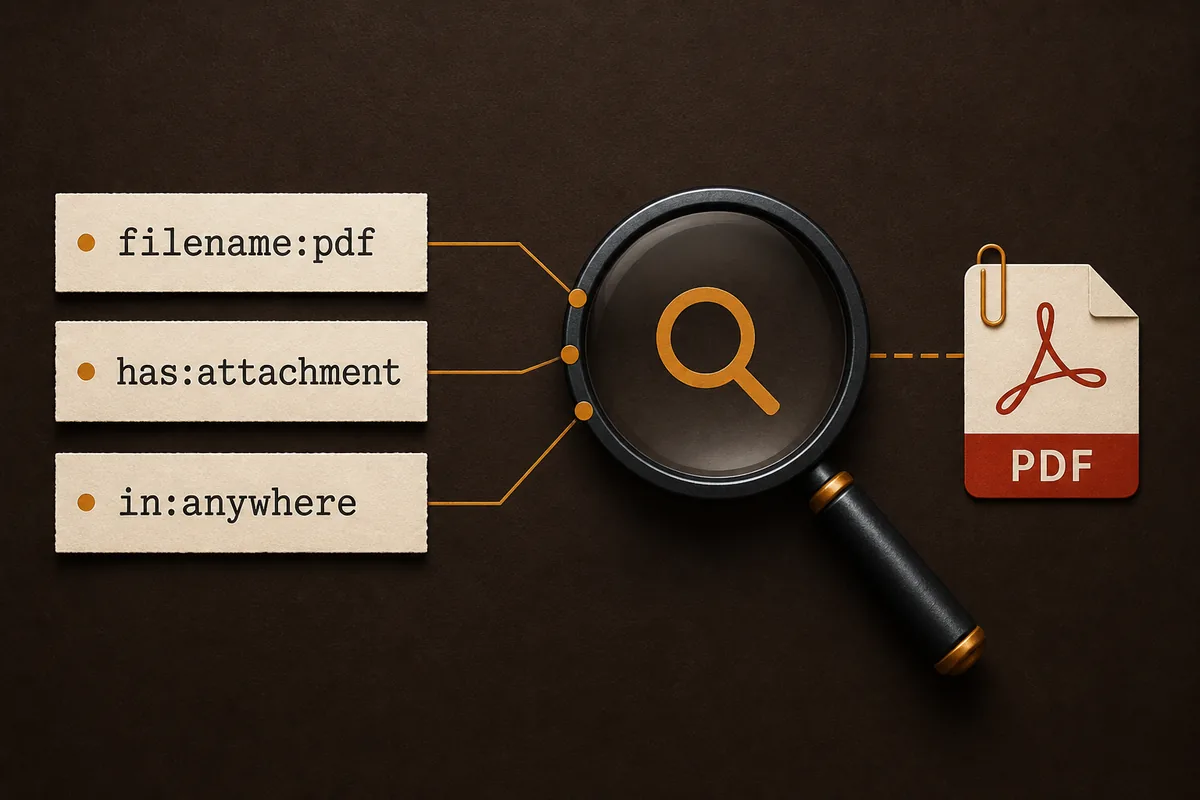
The most important operator is filename:pdf. It targets the filename rather than searching the entire body for the word PDF. Pairing it with has:attachment makes your intention clearer, while date and sender filters help when the same mailbox contains years of unrelated documents.
| Goal | Search query | When to use it |
|---|---|---|
| Find PDF attachments broadly | filename:pdf | Start here when you want the largest useful result set. |
| Require an attachment | has:attachment filename:pdf | Useful when body text contains many mentions of PDF. |
| Include mail outside common views | in:anywhere filename:pdf | Try this when an older or archived message is missing. |
| Find a sender's PDFs | from:[email protected] filename:pdf | Replace the address with a known sender or domain. |
| Limit by date | filename:pdf after:2025/01/01 before:2026/01/01 | Use Gmail's date operators for a project or tax period. |
| Combine a project term | filename:pdf (invoice OR receipt) | Use a subject or message term when file names are inconsistent. |
Official syntax reference
Refine the list
Build a precise Gmail PDF search in four steps
A broad PDF search is useful for discovery, but it is rarely the best export scope. If the mailbox contains many years of invoices, receipts, or scanned documents, refine the query before selecting messages. This reduces accidental exports and makes the final folder easier to audit.
Use one change at a time. When you add several filters at once and get no result, it is difficult to know which condition excluded the message. Start broad, record the result count, and narrow the search until the visible list matches the job.
- Search by sender or domain when the documents come from a known company.
- Use after: and before: with a clear date range, then test the boundary dates if a message is missing.
- Add a subject phrase, project word, or label when filenames are generic.
- Use in:anywhere only when you need archived, spam, or other non-inbox locations included.
Start with the file type
Run filename:pdf and look at the result list before changing anything. Note whether Gmail is finding the attachments you expected or only messages that mention PDF.
Add the scope
Add a sender, date range, label, or in:anywhere. For example, from:vendor.example filename:pdf after:2025/01/01 narrows a vendor document search without changing the file type.
Check the conversation
Open representative results and expand the thread if needed. Confirm that the PDF is attached to the message you intend to keep, especially when a thread contains several replies.
Save the final query
If the search will recur, keep the query in a project note or Gmail filter workflow. A repeatable query is safer than trying to remember the same date, sender, and attachment conditions later.
Quality check
Review the results before downloading anything
Search results are a shortlist, not a verified archive. Open several messages from different dates and senders. Check that the attachment is present, that the file opens, and that the message belongs to the intended project. This matters when a mailbox contains forwarded messages, duplicate invoices, or conversations where a later reply has a different attachment.
Also decide whether you need the original PDF file, a PDF rendering of the email, or both. An original attachment preserves the document as received. A rendered email PDF preserves the surrounding conversation and metadata that a standalone attachment does not. Keeping those two outputs separate prevents confusing a readable record with the source file.
- Compare the visible result count with a small sample from the expected date range.
- Open the original PDF attachment separately when its contents matter.
- Check for duplicate threads, forwarded copies, and attachments that share a generic filename.
- Keep the Gmail search query with the exported files so another person can understand the scope.
Read the product privacy boundary
Choose an output
Download the original PDFs or export the Gmail messages
Once the search is correct, choose the output based on what the recipient needs. If they need the document itself, download the original PDF attachment. If they need the email context, export the selected Gmail messages or conversation as PDFs. If they need both, retain the originals beside the rendered message PDFs and use matching filenames or a short index.
Gmail's normal interface is excellent for finding and opening an attachment, but it is not a universal bulk-download manager for every search result. For a small set, download and review files individually. For a controlled set of messages, use a local browser workflow that explains batch limits, separate versus merged PDFs, attachment handling, and failure reporting.
- Original PDF needed: download the attachment and keep its original filename when practical.
- Conversation context needed: save the message or thread as PDF.
- Both needed: keep the attachment and the message PDF as separate, clearly named files.
- Large or sensitive batch: test a small sample before processing the full selection.
Select only the intended messages
Use the refined Gmail query and visually confirm the selected count. Do not export an unbounded mailbox when the task only needs one project or date range.
Choose separate or merged PDFs
Separate PDFs are easier to file by message. A merged PDF is easier to read as one record, but it needs an order and a review step.
Review attachments and failures
Open a few PDFs, compare the count with the selection, and confirm which original attachments were retained. Keep any skipped or failed-item report with the export.
Use the related guide
When results look wrong
Why Gmail may not show every PDF you expect
No search operator can repair missing access or a message that no longer exists. A PDF may be in a deleted or spam folder, hidden by account retention rules, attached to a different message in the same thread, or named in a way that does not match the filter you chose. Try in:anywhere, remove one filter, and test a known message to isolate the problem.
If Gmail returns too many results, add a date, sender, subject word, or label. If it returns none, remove the newest condition and verify the file type. For a scanned document, the attachment filename may be clear even when the PDF's internal text is not searchable; Gmail's attachment search and the PDF viewer's text search are separate things.
- Use in:anywhere when archived or non-inbox messages may be involved.
- Check the Trash and Spam folders separately when the message may have been moved there.
- Search a sender, subject term, or date without filename:pdf to confirm the message is visible at all.
- Do not assume a PDF attachment's internal text is indexed in the same way as its filename.
Decision guide
Choose the smallest workflow that completes the job
If your goal is simply to locate a document, stop after the Gmail search and download the original attachment. If your goal is to show the surrounding conversation, save the message or thread as PDF. If your goal is to create a repeatable project record, keep the search query, the selected scope, the original attachments, and the exported message PDFs together.
The best workflow is usually the smallest verified one. A focused search reduces accidental disclosure, a sample review catches missing files, and a clear distinction between original attachments and rendered email PDFs makes the final archive easier to trust.
| You need | Best next step | Keep in mind |
|---|---|---|
| The original PDF document | Download the attachment | Preserves the received file, not the email context. |
| The email and its surrounding context | Save the message or thread as PDF | Review collapsed replies and images first. |
| A selected set of readable records | Use a local batch PDF workflow | Confirm separate/merged output and failure handling. |
| A broad mailbox archive | Use Google Takeout | PDF is not a substitute for mailbox backup or migration data. |
Related resources
FAQ
Questions about finding PDF files in Gmail
How do I find all PDF files in Gmail?
Start with filename:pdf. Add has:attachment, in:anywhere, a sender, or a date range when you need to refine the result list. Open a few messages to verify that the attachment, not only the word PDF in the body, is what you need.
How do I find PDF attachments in Gmail?
To find PDF attachments in Gmail, start with filename:pdf. Add has:attachment, a sender, a date range, or in:anywhere when you need a narrower or broader result set, then open representative messages to verify the attachment.
How do I search for all attachments in Gmail?
Use has:attachment for a broad attachment search. Add filename:pdf for PDF files, or use another filename extension when you need a different file type. Add dates or a sender to keep the result set manageable.
How do I download multiple Gmail PDF attachments?
Use Gmail search to define a small, reviewable selection first. Gmail's standard interface may require individual downloads, so for larger controlled batches choose a workflow that documents local processing, limits, file naming, and failures.
Does filename:pdf search Gmail's Trash and Spam?
Not necessarily. Try in:anywhere when messages may be outside normal views, then check the relevant folders and account retention rules. Do not assume a successful search is a complete historical archive.
Can I turn the matching Gmail messages into PDFs?
Yes, but that is a second step. First use Gmail search to choose the messages, then use Gmail Print or a documented local PDF workflow. Keep original PDF attachments separate when they are part of the record.
Bottom line
Search first, verify second, export last
The practical answer to how to find all PDF files in Gmail is filename:pdf, refined with has:attachment, in:anywhere, sender, label, or date operators when needed. After the list is focused, check representative messages and decide whether you need the original attachments, rendered email PDFs, or both.
A trustworthy Gmail PDF archive records its search scope and keeps the output format honest. Search is for locating messages; export is for creating a readable record; backup and migration require broader formats and separate retention decisions.
Ready to export the selected Gmail messages?
Use Gmail search to define the scope, then see how PDF My Email handles selected conversations, browser-local processing, PDF output, and attachment boundaries.
View Gmail to PDFOfficial references
- Google Gmail Help: Search operatorsOfficial reference for Gmail search operators and query syntax.
- Google Gmail HelpOfficial Gmail help for messages, attachments, search, and printing workflows.