
Start here
The short answer: save the email PDF and the original attachment files
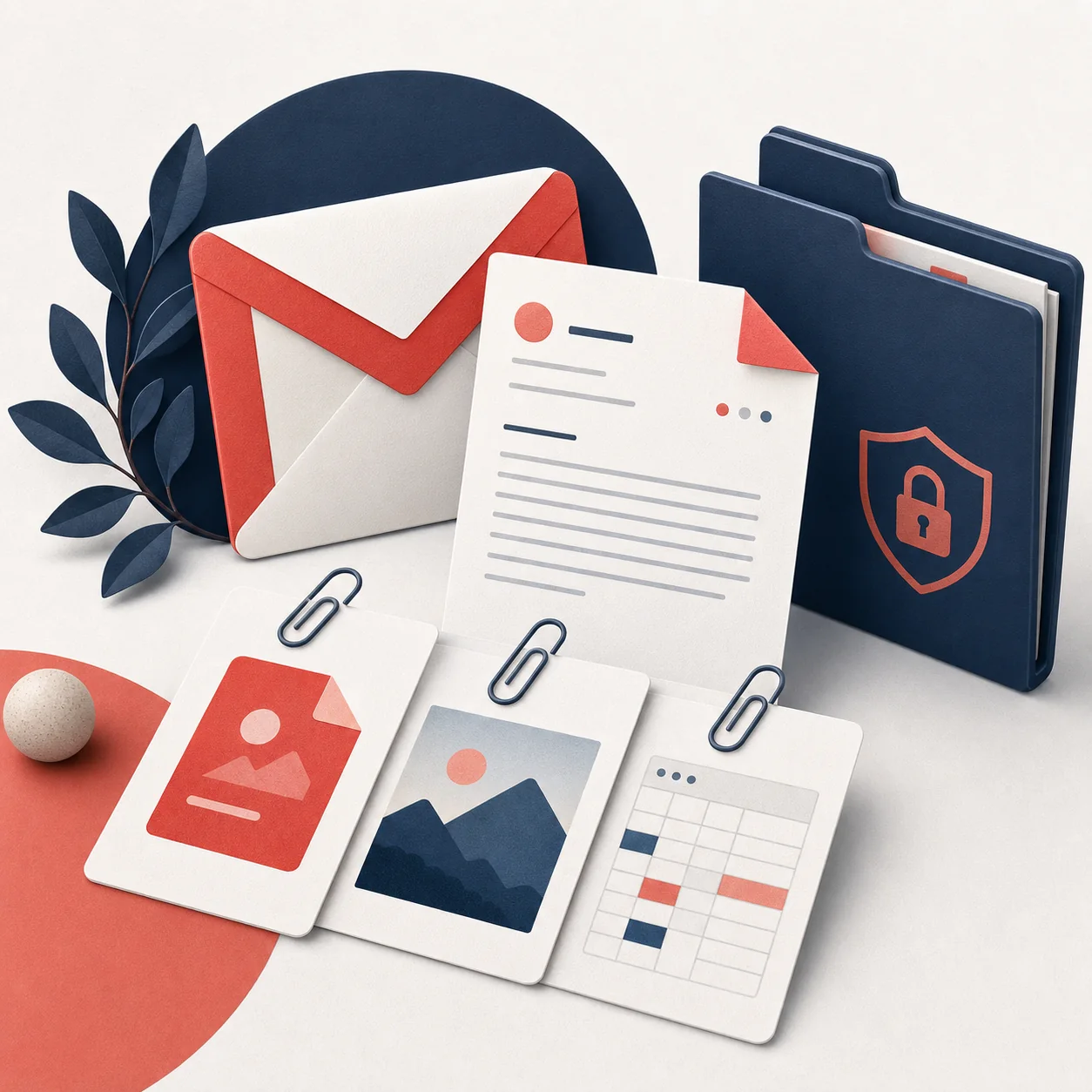
To save Gmail emails and attachments as PDF, open the message or conversation, make sure the content you need is visible, and create the PDF from the rendered Gmail view. Then keep important original attachments in the same project or record folder. The PDF helps a person read the communication; the original files preserve the source format and may contain information that a PDF rendering does not reproduce.
This distinction matters for invoices, approvals, contracts, travel records, and client handoffs. A PDF may show that an attachment existed, but it is not automatically a copy of the attachment. Before filing the export, check the PDF, open a sample of the original files, and confirm that the names and message scope match the record you intended to save.
- Use Gmail Print for one message or a single conversation.
- Use a selected local batch when you need multiple readable PDFs.
- Keep non-PDF originals beside the PDF instead of assuming they were embedded.
- Review completed and failed items before deleting or moving the source email.
Related guides
Know the output
PDF, original files, and ZIP are different outputs
People often use save Gmail emails and attachments as PDF to describe three separate jobs: making a readable PDF, downloading the original attachment files, and packaging a group of outputs so another person can review them. Treating those as one output creates avoidable gaps. A PDF is good for reading and sharing; an original DOCX, XLSX, image, or ZIP is still the better source file for editing or verification.
A useful export names the relationship between the files. For example, `2026-08-18_acme_invoice.pdf` can sit next to an `attachments` folder containing the original invoice spreadsheet and receipt image. If a batch creates one PDF per conversation, the ZIP can preserve the same names and keep unsupported files in an attachments directory rather than silently dropping them.
| Need | Best output | Check before filing |
|---|---|---|
| Readable email record | One PDF per message or conversation | Review page breaks, quoted replies, images, and dates |
| Readable record plus source files | PDF beside original attachments | Open a sample of each attachment type |
| Several selected conversations | Separate PDFs in a ZIP | Check every selected item and failure status |
| Sequential review | Merged PDF plus original files | Confirm order and keep an index if the file is large |
| Mailbox migration or backup | Google Takeout or supported mail archive | Do not treat a PDF set as a full mailbox export |
Method 1
Use Gmail Print when you need one email or conversation
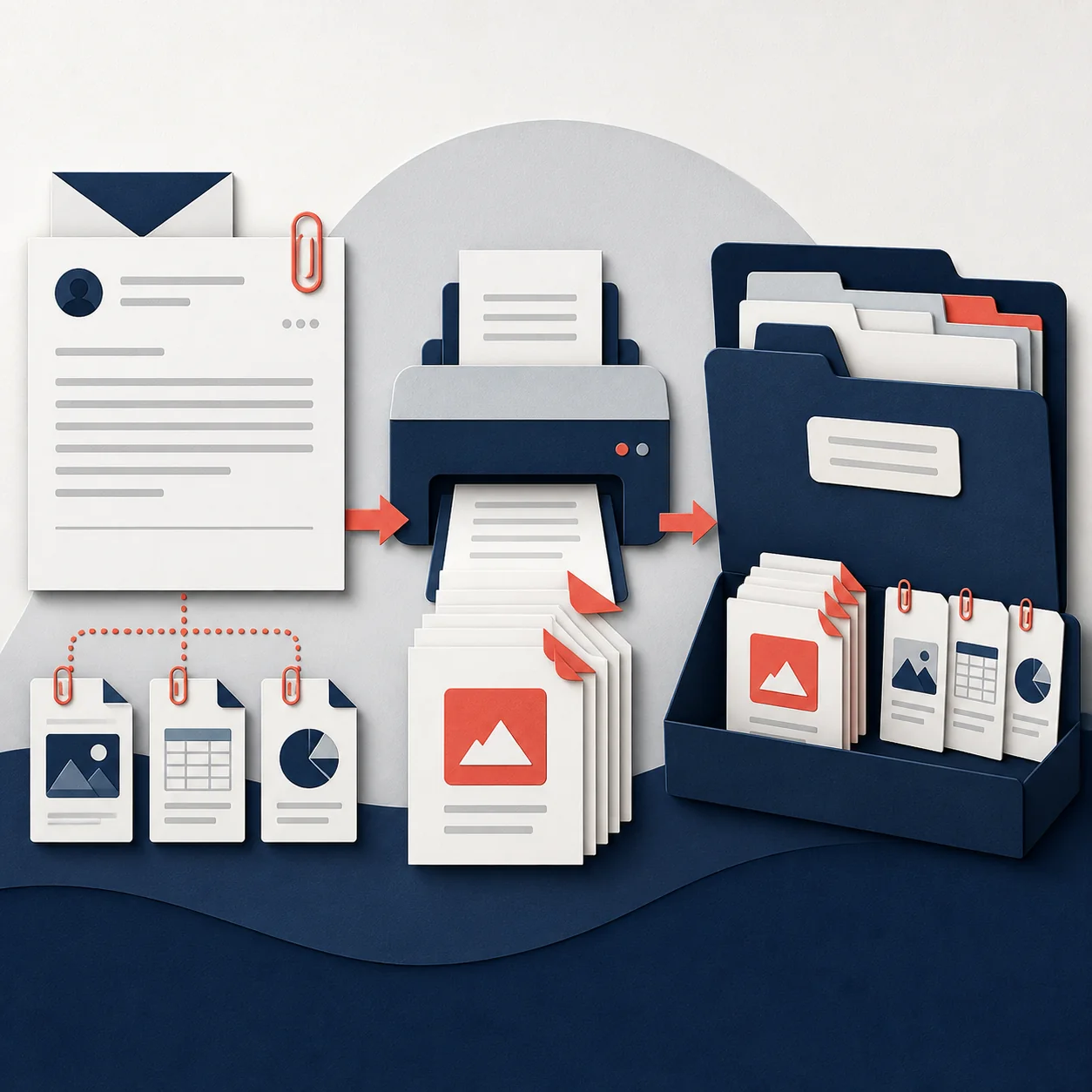
For a single message, Gmail Print is normally the shortest path. Open the email, choose the print action for the message or conversation, select Save as PDF in the system dialog, and review the page settings before saving. The print result represents what Gmail has rendered, so wait for important images, expand the replies you need, and check that the correct conversation is open.
After creating the PDF, download the original attachments separately if they matter to the record. Do not assume that a PDF preview, a paperclip icon, or an attachment filename means the underlying file was placed inside the PDF. Save the files with a shared base name and keep the original Gmail message available until the review is complete.
Open and prepare the message
Open the exact Gmail message or conversation, expand the replies you need, and wait for inline images or attachment cards to finish loading.
Print the rendered view
Use Gmail's Print action, select Save as PDF, and review paper size, orientation, margins, scale, headers, and footers.
Save and pair the files
Save the PDF with a descriptive name, download important originals, and place the PDF and attachments together before moving the record.
Method 2
Export selected Gmail emails in a local batch
When you need several emails and attachments, selection and review are more important than a one-click promise. Use Gmail search, labels, or checkboxes to define the batch. Then decide whether each conversation should become its own PDF or whether a merged PDF is easier for the person who will read the export. Separate files are easier to replace when one item fails; a merged file is easier to scan from start to finish.
A reliable batch should show progress, allow cancellation, report failed items, and make attachment behavior explicit. Export sequentially when possible so a long thread or large attachment does not consume all browser memory at once. After the batch finishes, open a sample from the beginning, middle, and end, then check the failure report before you move the ZIP to its final location.
- Filter before selecting so the batch has a documented scope.
- Prefer separate PDFs when records will be filed independently.
- Use a merged PDF only when reading order matters and the file will stay manageable.
- Review failed items and attachments before treating the export as complete.
Continue with the local workflow
Attachment rules
How to handle PDF, image, document, and ZIP attachments
PDF and image attachments are the easiest formats to inspect beside an email PDF. Depending on the workflow, they may be appended as pages to a combined document, but that is an output choice rather than a guarantee. If the source file contains a signature, metadata, a spreadsheet formula, or a layout that must remain editable, keep the original even when an appended page is convenient for reading.
DOCX, XLSX, PPTX, ZIP, and other files should normally remain as original files in the export package. A browser PDF engine is not a dependable replacement for the application that created those formats. Preserve the attachment filename, record the message it came from, and avoid converting a source file just to make a folder look uniform.
- PDF attachment: keep the original and optionally append a copy for easier reading.
- Image attachment: keep the original resolution; an appended page is only a viewing copy.
- Office attachment: preserve DOCX, XLSX, or PPTX as the source file.
- Archive attachment: keep the ZIP or other archive intact and do not assume its contents were inspected.
| File type | Practical treatment | Why it matters |
|---|---|---|
| Keep original; optionally append to a combined PDF | The original may contain metadata or a different page order | |
| JPG, PNG, or other image | Keep original; append only as a viewing copy | Compression and page size can change visual evidence |
| DOCX, XLSX, PPTX | Keep original in the attachments folder or ZIP | Editing, formulas, and layout are not preserved by a screenshot |
| ZIP or other archive | Keep the archive intact | The PDF cannot represent every nested file |
| Unknown or blocked file | Keep filename and export warning | A failure should be visible instead of silently omitted |
Privacy boundary
What local processing changes—and what it does not
An online email-to-PDF converter may require an upload before it can produce a file. A browser-local workflow has a different boundary: the selected Gmail content, downloaded attachments, and generated PDFs can stay on the device while the account service handles only the information needed for sign-in, plan status, usage, and billing. That separation is useful, but it should be explained as a processing design, not as a legal or compliance certification.
Before exporting sensitive mail, check the extension permissions, account requests, and privacy policy. The right test is specific: does the workflow send email content, attachment bytes, message metadata, or generated filenames to a server? PDF My Email's product boundary is designed so email conversion stays local, while account and entitlement checks remain separate.
- Keep the source message until the PDF and attachment sample pass review.
- Use a controlled destination folder for invoices, contracts, and client records.
- Do not place confidential exports in a shared folder without checking access permissions.
- Read the current privacy policy before using the workflow for regulated or sensitive records.
Read the product boundary
Filing checklist
Use a naming pattern that keeps PDFs and attachments together
A good filename makes the export useful after the Gmail tab is closed. Include the date when it matters, a normalized sender or organization, a shortened subject, and a sequence number for multiple messages. Use the same base name for the PDF and the attachment folder so a reviewer can understand the relationship without opening every file.
Clean characters before download. Windows rejects characters such as `\ / : * ? " < > |`, and very long subjects can create paths that fail even when the message itself is valid. Replace unsupported characters, collapse repeated spaces, limit the subject length, and add a suffix when two conversations would otherwise produce the same name.
- Example: `2026-08-18_acme_invoice_01.pdf`.
- Use an `attachments` folder or ZIP entry with the same base name.
- Keep sequence numbers stable when exporting a batch.
- Avoid putting message IDs, full email addresses, or sensitive subject text in shared filenames unless your policy allows it.
Decision guide
Which Gmail email and attachment workflow should you use?
Choose the smallest workflow that preserves the information you need. Gmail Print is usually enough for one message. A local selected export is more useful when the work involves several conversations, repeatable names, and a completion report. Google Takeout or a mail archive belongs to a different job: broad mailbox portability rather than a readable PDF record.
The attachment requirement should decide the final check. If the recipient only needs to read the correspondence, a PDF may be enough. If the recipient needs to edit a spreadsheet, verify an original image, or open a ZIP, keep the source file. The strongest archive makes that choice obvious instead of hiding every file inside one visually tidy PDF.
| Your goal | Recommended route | Main caution |
|---|---|---|
| One email as a readable record | Gmail Print | Review the rendered message and download important attachments |
| One complete conversation | Print after expanding needed replies | Collapsed or unloaded content may be missing |
| Several selected emails | Local batch export | Check progress, failures, names, and attachments |
| Email PDF plus original files | Separate PDF and attachment package | Keep the relationship between names clear |
| All or most of the mailbox | Google Takeout or approved archive | A PDF collection is not a complete backup |
FAQ
Questions about Gmail PDFs and attachments
Does saving a Gmail email as PDF include the original attachments?
Not automatically in every workflow. A PDF normally represents the rendered email. Keep original PDF, image, document, spreadsheet, or ZIP attachments beside the email PDF unless the workflow explicitly appends or packages them.
How can I save Gmail emails and attachments together?
Create the email PDF, download the original attachments, and use a shared base name for the PDF and its attachment folder. A local batch export can also package separate PDFs and unsupported original files in a ZIP.
Can I save multiple Gmail emails with attachments as PDF?
Yes. Select the messages first, choose separate or merged PDF output, and review the completion report. Separate files are easier to file; merged output is easier to read but harder to repair when one item fails.
Are Gmail attachments uploaded when I create a local PDF?
A local browser workflow can keep selected email content, attachments, and generated PDFs on the device. Account, plan, and usage checks are separate; review the current permissions and privacy policy before using confidential mail.
What should I do with DOCX, XLSX, and ZIP attachments?
Keep the original files in the attachment folder or ZIP. They are not reliably represented by a PDF page, especially when formulas, editability, nested files, or source metadata matter.
How should I name Gmail PDFs and attachments?
Use a stable pattern such as date, sender, shortened subject, and sequence number. Remove unsupported filename characters, keep the same base name for related files, and avoid exposing sensitive subject text in shared folders.
Summary
Make the email record and the source files agree
The safest way to save Gmail emails and attachments as PDF is to treat the PDF as the readable communication record and the original files as separate source material. Select the smallest message set you need, wait for the Gmail view to load, export locally when privacy matters, and review both the PDF and attachment package before filing.
That simple boundary keeps the archive honest: a PDF is easy to read, an original attachment is easier to verify or edit, and a ZIP can connect the two without pretending that every file has the same format.
Ready to organize a selected Gmail export?
Use PDF My Email to create local PDFs from selected Gmail conversations, then review the attachment package before downloading the final archive.
Open Gmail to PDFOfficial references
- Google Gmail HelpOfficial Gmail guidance for message actions, attachments, and printing workflows.
- Google Account Help: Download your dataOfficial guidance for broader Google data exports with Takeout.