
Start here
The short answer: install, select, export, and review
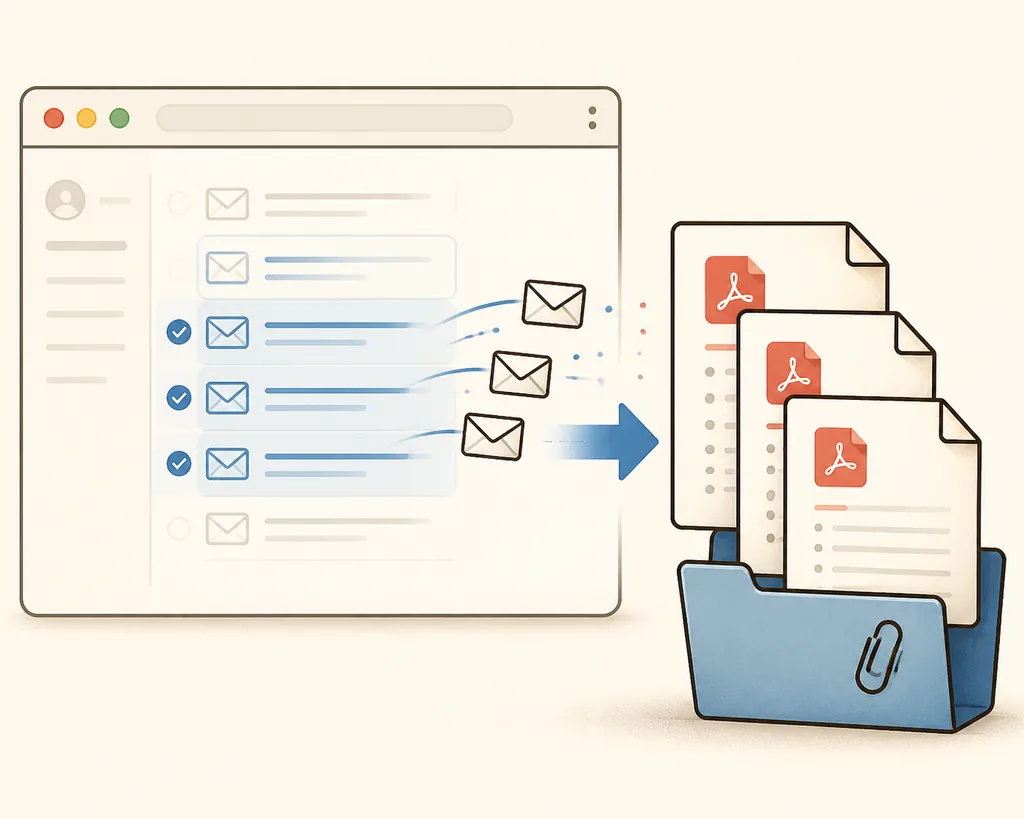
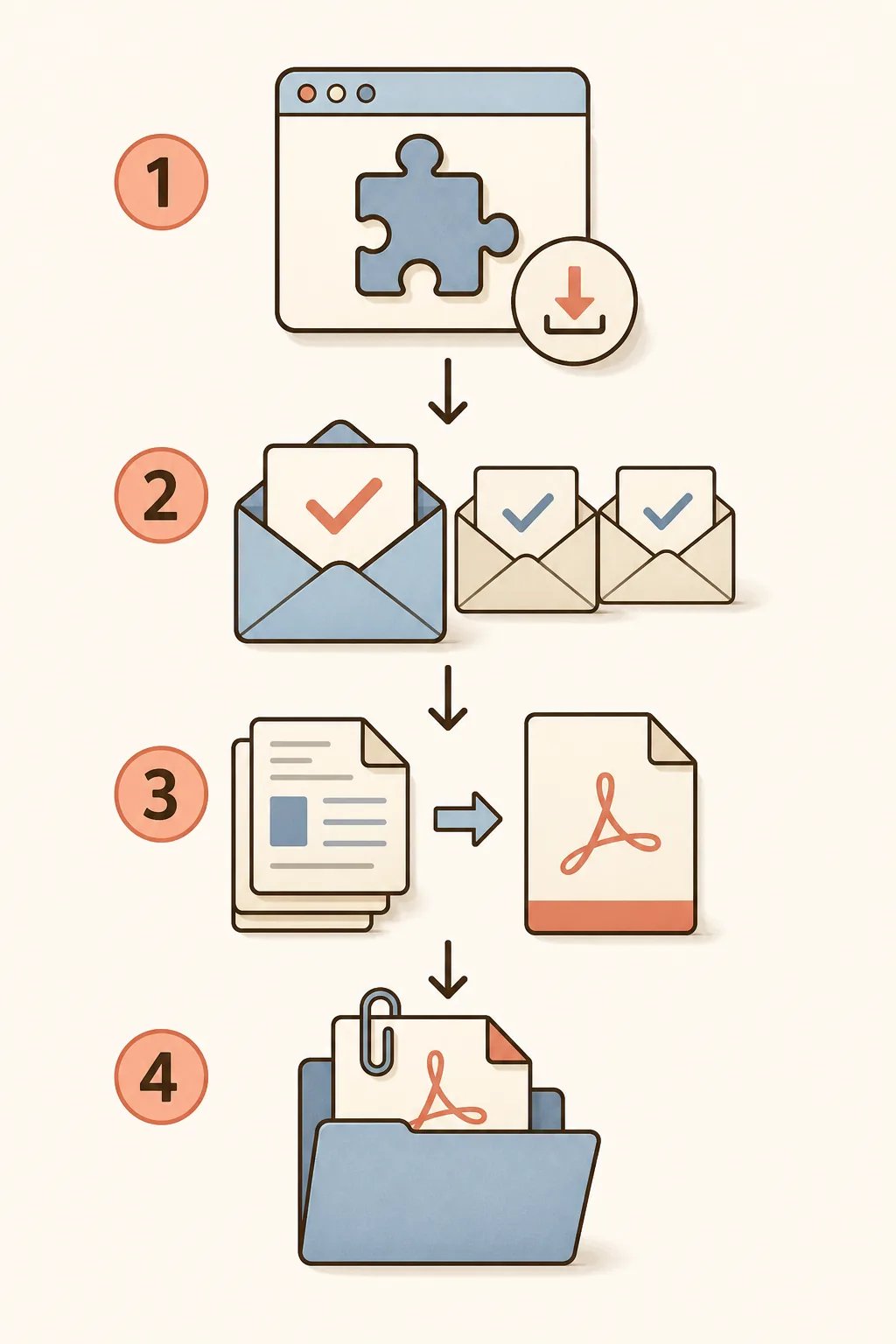
To use a Gmail to PDF extension, install it from the official Chrome Web Store listing, open Gmail in a compatible desktop Chromium browser, select one conversation or a small group, choose the output settings, and start the export. The extension should make the selected scope visible before it begins and should show which items completed or failed.
PDF My Email is designed for user-started exports. It prepares the Gmail print view in the browser, creates a separate PDF for each successful conversation or combines successful files into one document, and keeps supported original attachments available in the local download package. The account service handles sign-in, plan status, billing, and usage separately from the message conversion path.
Start with a two- or three-message test batch when the record is important. Open the result, check page order and filenames, and confirm that the attachment package contains the originals you need. This review step matters because a PDF is a rendering of the email, not proof that every linked file, collapsed reply, remote image, or editable source document was captured.
- Use the official store listing instead of guessing a CRX or ZIP download URL.
- Select the exact Gmail conversations before choosing separate or merged output.
- Keep original DOCX, XLSX, PPTX, ZIP, PDF, and image files when their source format matters.
- Review a sample and the completion report before moving the export into a project or records folder.
Choose the right workflow
What a Gmail to PDF extension should do
The word extension changes the task compared with a normal Gmail Print search. Gmail Print is usually enough for one message or one short conversation. An extension becomes useful when you need a repeatable selection flow, filenames, batch progress, separate files, a merged document, or an explicit attachment policy. The page should explain those choices before asking you to install anything.
A good Gmail PDF extension also tells you what it does not do. It should not imply that a PDF is a complete backup, that every Office file can be converted perfectly in the browser, or that a successful message render means every remote resource was available. Clear limits make the resulting archive easier to trust and easier to review.
| Need | Best starting point | Main check |
|---|---|---|
| One email or short thread | Gmail Print | Expand the content you need and review the PDF |
| Several selected conversations | Gmail to PDF extension | Confirm selection, progress, failures, and filenames |
| Email plus original attachments | Extension with a clear attachment package | Open a sample of the original files |
| All or most of a mailbox | Google Takeout or an approved archive | Do not treat a PDF set as a mailbox backup |
Compare the broader options
Step 1
How to install the Gmail to PDF Chrome extension
Install PDF My Email from the official Chrome Web Store listing linked below. The listing is the stable place to check the current version, publisher information, supported browsers, and user-facing permission details. Avoid third-party CRX files or download pages that do not identify the extension clearly.
After installation, open Gmail in a desktop browser rather than starting with a mobile Gmail app. The extension works from the Gmail web interface, where it can see the conversation selection and prepare the browser's print view. If an organization manages your browser, an administrator policy may restrict extension installation or debugger access.
Open the official listing
Use the Chrome Web Store link on this page or the homepage. Check that the listing, extension name, and publisher match PDF My Email before adding it.
Add the extension
Choose Add to Chrome and accept the browser's installation dialog. Review the requested permissions rather than treating them as an invisible technical detail.
Open Gmail on the desktop web
Sign in to the Gmail account that contains the messages, allow the page to finish loading, and open the extension side panel or Gmail export controls.
Run a small test
Select one or two non-sensitive conversations first. Confirm the PDF, attachment behavior, filenames, and completion state before exporting a larger record set.
Install or check the product
Step 2
How to export selected Gmail emails as PDF
The most useful reason to install a Gmail PDF extension is controlled batch work. Use Gmail search, labels, or the inbox checkboxes to define the exact conversations that belong in the export. Do not begin with an unbounded mailbox when the real goal is a project folder, invoice set, client handoff, or small evidence package.
Choose separate PDFs when each conversation will be filed or shared independently. Choose a merged PDF when a reviewer needs to read the conversations in sequence. A merged document is convenient, but it is larger and harder to repair when one message fails, so keep the batch manageable and review the order.
Attachment handling should be an explicit output choice. Supported PDF and image files may be appended as viewing pages when the extension offers that mode. DOCX, XLSX, PPTX, ZIP, and other source files should normally remain original files in a ZIP or attachment folder. The visual PDF and the editable source do not serve the same purpose.
Filter before selecting
Use a Gmail query or label, then verify the visible selection count. Narrow scope reduces accidental exports and makes the final review meaningful.
Choose separate or merged output
Pick one PDF per conversation for filing, or a merged PDF for sequential reading. Check paper size, orientation, margins, scale, headers, footers, and page numbers.
Set the attachment rule
Decide whether supported PDF or image attachments should be appended, and where original unsupported files should be kept.
Review the completion report
Open files from the beginning, middle, and end of the batch. Compare the count, inspect failed items, and keep the Gmail source until the export is accepted.
| Output | Useful when | Trade-off |
|---|---|---|
| Separate PDFs | Each email is an independent record | Easier filing and replacement, more files to sort |
| Merged PDF | A reviewer needs one reading sequence | Easier reading, larger file and harder repair |
| PDF plus original files | The attachment must remain editable or verifiable | Requires a clear shared filename and folder |
| ZIP package | A batch contains mixed formats | Review the archive contents before delivery |
Continue with related guidance
Privacy and permissions
Understand permissions before using the extension
A browser extension that creates a high-fidelity PDF may request more sensitive permissions than a simple page button. PDF My Email uses the debugger permission to connect to the active Gmail tab during export and call the browser's native PDF printing path. That permission is not a reason to hide the install choice; it is a reason to explain exactly when the connection is used and when it is released.
The extension's content path is separate from account services. Selected email content, downloaded attachments, and generated PDFs are designed to stay in the browser workflow. Sign-in, plan entitlement, payment confirmation, and usage totals are handled as account operations and do not require the email body or generated file to render the PDF.
Before exporting confidential mail, read the current Privacy Policy and test the network boundary with the permissions and account behavior you can observe. Do not send message bodies, attachment bytes, subject lines, or generated filenames to support unless it is necessary, authorized, and appropriate for your organization.
- debugger: connects to the active Gmail tab for native PDF printing during an export.
- identity: supports Google sign-in with profile identity scopes, not Gmail message API access.
- storage and sidePanel: keep settings, task state, and the extension panel available in the browser.
- Gmail and Google host permissions: support the signed-in Gmail page and eligible images or attachments.
- The extension is not a legal-hold, eDiscovery, or certified compliance system.
Read the boundary in context
Compatibility
Chrome, Edge, and other Chromium browsers
PDF My Email is built for the desktop Gmail web experience inside compatible Chromium browsers. Chrome is the primary installation path, while Edge, Brave, and Opera can use the same extension platform when their store and organization policies allow it. The browser name does not change the core boundary: selected messages are prepared and printed locally, while account operations remain separate.
Compatibility is more than whether the extension installs. Gmail can change its page structure, a long conversation can exceed browser memory, and remote images or attachments can be unavailable. Test the exact browser profile and account you will use for important work, especially when a managed device applies additional restrictions.
| Environment | Expected fit | What to verify |
|---|---|---|
| Chrome desktop | Primary workflow | Store installation, Gmail selection, and a small PDF test |
| Edge desktop | Chromium-compatible workflow | Extension policy, Gmail access, and print output |
| Brave or Opera desktop | May work with Chromium support | Store availability, privacy settings, and attachment access |
| Mobile Gmail app | Not the target workflow | Use desktop Gmail for extension controls and PDF printing |
| Managed browser | Depends on administrator policy | Debugger permission, extension installation, and external-resource rules |
Check the product details
Troubleshooting
Fix common problems during the first export
If the first PDF is incomplete, diagnose the rendered Gmail view before changing random settings. Expand the replies you need, wait for images and attachment cards to load, and confirm that the correct account and conversation are open. Native browser printing can only capture content that is available to the prepared page.
For a large batch, reduce the selection and use separate PDFs before trying a merged file. This helps identify whether one long thread, a large attachment, or a blocked resource is responsible for the failure. Keep the failed-item report and retry only the items that need another attempt.
A successful export still deserves a review. Compare the number of selected conversations with the number of completed PDFs, open a few files, check page order and filenames, and confirm that original attachments are present before deleting or moving the source mail.
- No export button: reload Gmail, confirm the extension is enabled, and open the side panel again.
- Missing replies: expand the conversation and confirm the print scope before retrying.
- Missing images: wait for the message to load; remote resources may be blocked or unavailable.
- Wrong layout: review paper size, orientation, scale, margins, headers, and footers.
- Missing attachment: keep the original file separate or inspect the ZIP and failure report.
- Batch failure: use a smaller test set, release other browser tabs, and retry only failed items.
Need a different route?
FAQ
Questions about Gmail PDF extensions
What is a Gmail to PDF extension?
It is a browser add-on that turns a user-selected Gmail message or conversation into a PDF workflow. The useful distinction from Gmail Print is repeatable selection, batch progress, filenames, output modes, and documented attachment handling.
How do I install a Gmail to PDF extension?
Open the official Chrome Web Store listing, confirm the extension name and publisher, choose Add to Chrome, open Gmail on the desktop web, and run a small test export before using important records.
Does PDF My Email upload my email content?
The product is designed so selected email content, attachments, and generated PDFs stay in the browser conversion workflow. Account, plan, payment, and usage requests are separate. Review the current permissions and Privacy Policy for the complete boundary.
Can I save multiple Gmail emails as PDFs?
Yes. Select the conversations first, choose separate or merged output, define attachment behavior, and review the completion report. Separate PDFs are usually easier to file; merged PDFs are easier to read in sequence.
Why does the extension need debugger permission?
It uses debugger access to connect to the active Gmail tab during export and call the browser's native PDF printing path. The connection should be limited to the export and released after completion, cancellation, or failure.
Does it work in Microsoft Edge?
It is designed for compatible desktop Chromium browsers, including Chrome and Edge. Installation policy, Gmail changes, memory limits, and managed-browser restrictions can affect the result.
Are attachments embedded in the PDF?
Not all attachments. A PDF is the rendered email. Keep original Office, ZIP, PDF, and image files when their editable content, metadata, resolution, or nested files matter; use the documented append or ZIP options when available.
Bottom line
Install with a clear scope and review every export
A Gmail to PDF extension is the practical middle ground between printing one message manually and exporting an entire mailbox archive. Install it from the official listing, select only the conversations you need, choose separate or merged output, and make the attachment rule explicit before starting.
The most reliable workflow is still reviewable: the browser creates the local PDF, the completion report explains what happened, and the original attachments remain available when a PDF cannot preserve their source format. Keep that boundary clear and the extension becomes a useful filing tool rather than a misleading backup promise.
Ready to test a Gmail to PDF extension?
Install PDF My Email from the official Chrome Web Store listing, start with a small Gmail selection, and review the PDF and attachment package before scaling up.
Add to ChromeOfficial references
- PDF My Email on the Chrome Web StoreOfficial listing for installation, current version information, publisher details, and user-facing permissions.
- Google Gmail HelpOfficial Gmail guidance for printing and working with messages and attachments.