
Start here
How to save a Gmail email as PDF: the fastest method
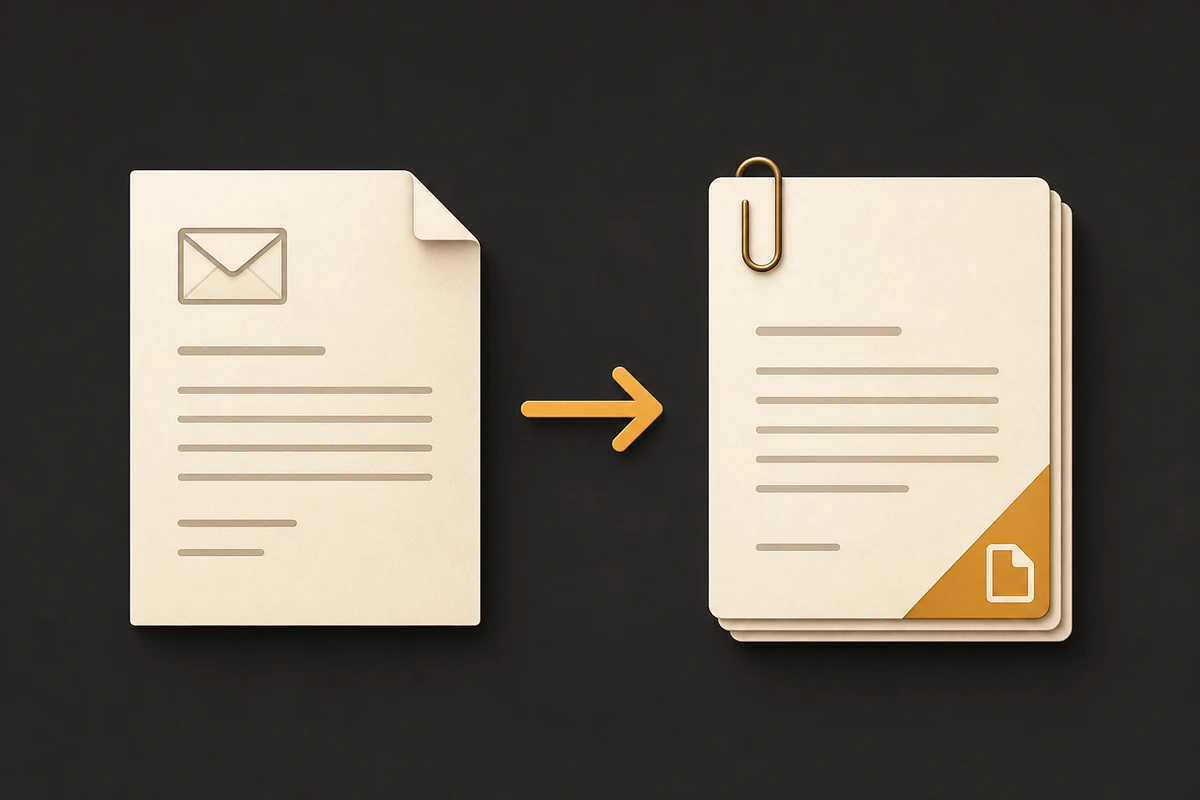
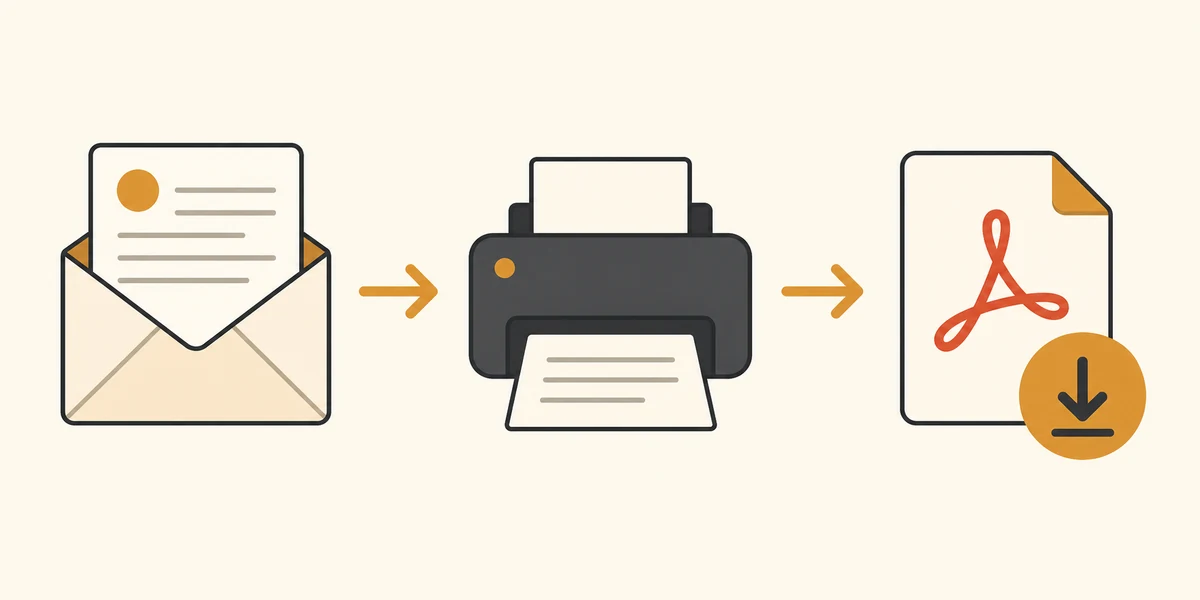
For a single message, open it in Gmail, choose Print, select Save as PDF in the print dialog, confirm the paper and layout settings, and save the file. This is the fastest way to save a Gmail email as PDF because it uses Gmail and your browser without another conversion service.
For a whole set of messages, the right workflow depends on whether you need one file, separate files, or the original attachments beside the PDFs. Decide that before exporting: it prevents a readable PDF from becoming an unorganized download folder later.
- Use Gmail Print when you need one message or one conversation quickly.
- Expand the thread and wait for images or important content to load before printing.
- Treat the resulting PDF as a selected export, not as an automatic Gmail backup.
Method 1
Use Gmail Print to save one email as a PDF
Gmail's built-in Print route is usually the best choice when you only need one message. It keeps the process close to the original Gmail interface and avoids uploading the email to a separate online converter. The exact button position can vary slightly between Gmail layouts, but the underlying sequence is stable.
Before you save, scan the rendered message. If the email contains a long signature, a collapsed reply, remote images, or a table that is wider than the page, fix the view first. The print dialog can save what is rendered, not what is merely implied by the inbox row.
Open the message
Open the Gmail email you want to keep. If it is part of a thread, decide whether the current message or the whole conversation is the useful record.
Choose Print
Use Gmail's Print action for the message or conversation. A print preview or the browser's system dialog should appear; if nothing happens, check pop-up permissions and reload the message.
Select Save as PDF
Choose Save as PDF as the destination, review paper size, orientation, margins, scale, headers, and footers, then save to a folder with a descriptive filename.
Method 2
Save a complete Gmail conversation when the thread matters
A conversation can contain the context that makes an individual message useful: the original request, a clarification, the approval, and the final answer. If you are saving an invoice discussion, a project decision, or a travel change, printing only the last reply may leave out the evidence someone needs later.
Open the thread and expand the messages you need before using Print. Gmail may keep older replies collapsed, and content that has not been loaded or that depends on remote resources may not appear in the PDF. A quick page-by-page review is worthwhile for long or important threads.
Use a filename that describes the record rather than keeping the browser default. A practical pattern is date, sender, and subject. For sensitive records, store the PDF in the same controlled folder as the original attachments and follow your own retention policy.
- Print the conversation only after the needed replies are expanded.
- Check page breaks, quoted replies, signatures, tables, and inline images.
- Keep the original Gmail message available until the PDF has been reviewed.
Method 3
Export selected Gmail emails as PDF in bulk
The standard Gmail Print flow is practical one message at a time, but repeating it for dozens of selected emails is slow and makes filenames and attachments harder to manage. A browser extension can be a better fit when you need a selected batch for invoices, approvals, project handoff, travel records, or an account transition.
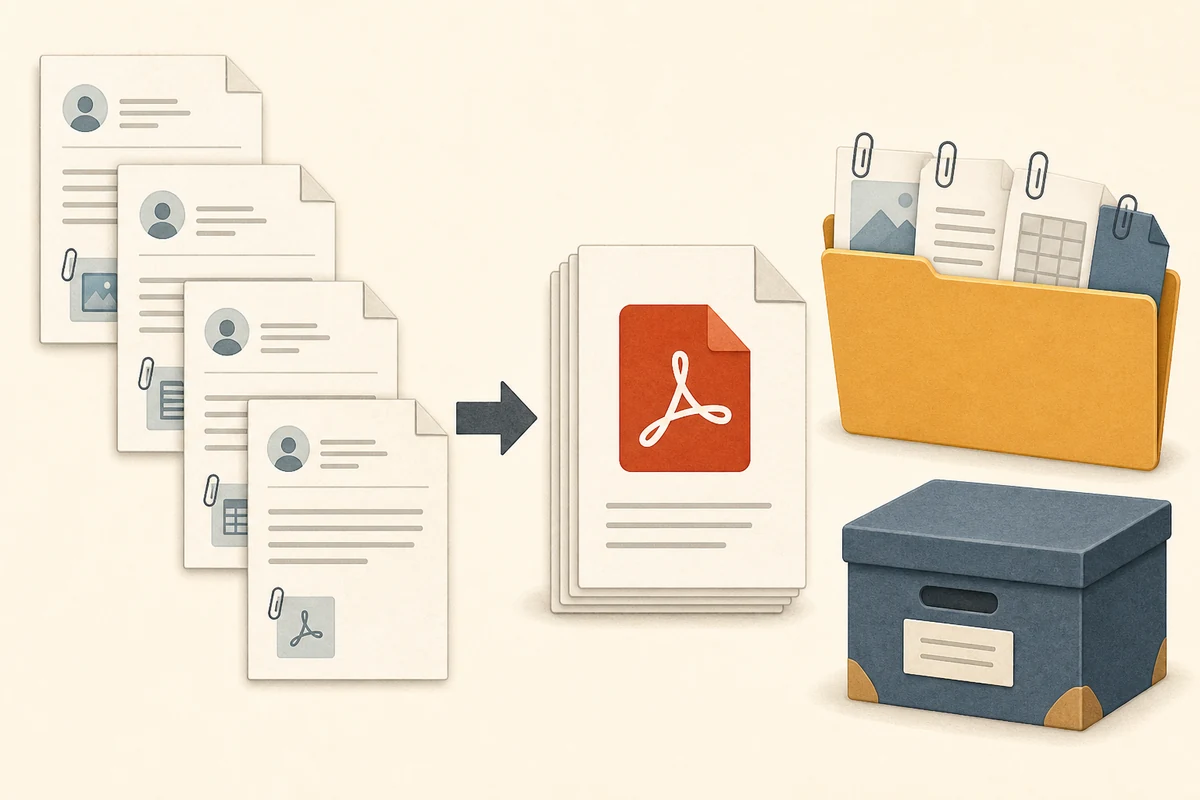
Choose the messages in Gmail first, then decide whether the result should be one PDF per conversation or one merged document. Separate files are easier to sort into individual records. A merged PDF is easier to read from start to finish, but it can become large and is harder to correct when one message fails.
A trustworthy bulk workflow should explain what it can access, where the email content is processed, how failed items are reported, and what happens to attachments. PDF My Email is designed for user-started selected exports in a compatible desktop Chromium browser; it does not silently crawl the mailbox or act as a compliance archive.
Filter and select
Use Gmail search, labels, or checkboxes to create the exact set you want. Selection is safer than exporting a whole mailbox when the goal is a project folder or a small record set.
Choose the output
Pick separate PDFs for independent records or a merged PDF for sequential reading. Review the batch summary so you know whether every selected message completed.
Review the files
Open a sample and inspect the filenames, page order, attachments, and any failed items before moving the export to its final folder.
Continue with the product workflow
Important details
What happens to Gmail attachments and private email content?
Saving an email as a PDF does not automatically turn every attachment into a PDF page. The PDF normally represents the rendered message, while an original DOCX, ZIP, spreadsheet, or image may remain a separate file. If the attachment is the important record, keep it beside the PDF rather than assuming the PDF contains it.
Privacy also depends on the workflow you choose. Gmail Print uses your browser's print path. Online converters may require an upload, which changes the handling boundary. A browser extension can keep selected email content and generated files in the browser workflow, but you should still review its permissions, account requests, payment flow, and stated limits before using it with confidential mail.
| Need | Practical choice | Check before filing |
|---|---|---|
| Readable message only | Gmail Print → Save as PDF | Review layout, images, and page breaks |
| PDF plus original files | Save the PDF and attachments together | Confirm filenames and folder structure |
| Selected batch | Use a bulk export workflow | Check completed and failed items |
| Compliance or retention | Use an approved records system | A PDF export alone is not certification |
Review the site boundaries
Decision guide
Which way should you use to save Gmail as PDF?
There is no single best method for every request. Start with the smallest workflow that preserves the information you actually need. If one message is enough, Gmail Print is usually faster than installing another tool. If you need a selected batch, organization and review controls matter more than a one-click claim.
The table below keeps the keyword boundaries clear: save and download describe the same core information need, while extension and converter describe different product choices. This guide explains the decision; the homepage explains the PDF My Email product itself.
| Method | Best for | Main limitation |
|---|---|---|
| Gmail Print | One email or short conversation | Manual repetition for multiple messages |
| Conversation print | A thread where context matters | Collapsed or unloaded content needs review |
| Selected bulk export | Several chosen emails and attachments | Requires a compatible workflow and batch review |
| Online converter | Only when policy permits an upload | Email content leaves the browser workflow |
Troubleshooting
Common problems when saving Gmail emails as PDF
If the PDF looks incomplete, do not immediately repeat the same export. First identify whether the issue came from Gmail's rendered view, the browser print settings, a collapsed part of the thread, or the selected export tool. That diagnosis usually saves more time than changing random margins or paper sizes.
For large jobs, browser memory and device performance can affect completion. Export a smaller test set, use separate PDFs when a merged document is too heavy, and check the completion summary. Keep the source messages until the sample and the final files have been reviewed.
- Missing images: wait for the message to load, then print again.
- Missing replies: expand the conversation and confirm the print scope.
- Wrong page layout: review paper, scale, margins, headers, and footers.
- Attachment missing: download the original file separately or use a workflow that documents attachment handling.
- Batch failure: reduce the batch, check browser limits, and inspect the failed-item report.
FAQ
Questions about saving Gmail emails as PDF
How do I save or download a Gmail email as a PDF?
To save or download a Gmail email as a PDF, open the message, choose Print, select Save as PDF in the system print dialog, confirm the page settings, and save the file. Review the PDF before deleting or moving the original message.
Can I save an entire Gmail conversation as one PDF?
Yes. Open the conversation and use Gmail's print option for the conversation when available. A long thread can create a large PDF, so check that every message you need was loaded before saving.
How do I download multiple Gmail emails as PDF?
Gmail's standard Print flow is designed for one message or conversation at a time. For selected bulk exports, use a compatible browser extension that clearly explains its processing boundary, batch behavior, and attachment handling.
Are Gmail attachments included in the PDF?
Not automatically in every situation. The PDF usually represents the rendered email. Download important original attachments separately, or use an export workflow that documents whether attachments stay beside the PDF or can be appended as supported pages.
Why is my saved Gmail PDF missing content?
The message may not have finished loading, remote images may be blocked, the thread may be collapsed, or the print dialog may use different page settings. Reload the message, expand the needed content, and review the PDF before relying on it.
Is saving Gmail as PDF the same as backing up Gmail?
No. Saving selected messages as PDF is a manual export. It does not automatically archive the mailbox, preserve every linked file, enforce retention, or create a legal or compliance record.
Bottom line
Save the smallest useful Gmail record
For one email, use Gmail Print and save as PDF. For a thread, expand the context and review the resulting pages. For selected batches, choose a workflow that makes separate files, merged output, attachments, failures, and privacy boundaries clear.
The best export is the one you can still understand later: a descriptive filename, the right conversation scope, the original attachments when needed, and a quick review before the file becomes part of a project or record set.
Need to export selected Gmail emails in bulk?
See how PDF My Email handles selected conversations, separate or merged PDFs, attachments, browser processing, and plan limits.
View Gmail to PDFReference
- Google Gmail HelpOfficial Gmail help for message actions and printing workflows.