
Quick answer
How to export Gmail emails: choose by scope first
The phrase export Gmail emails covers several different jobs. You may want every message for a mailbox archive, a few conversations for a project folder, a readable PDF for a record, or files that can move into another mail application. Those goals should not be forced into one format.
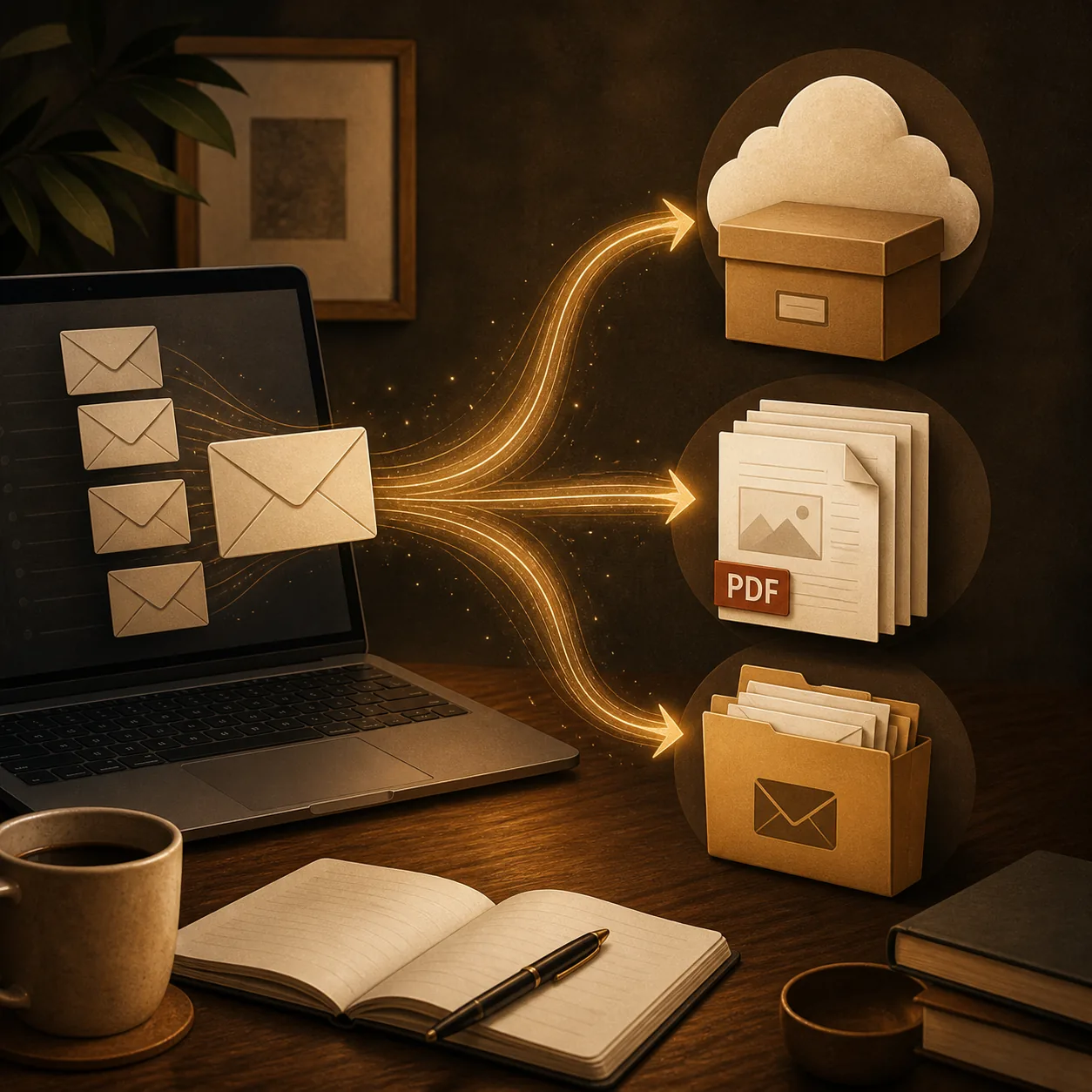
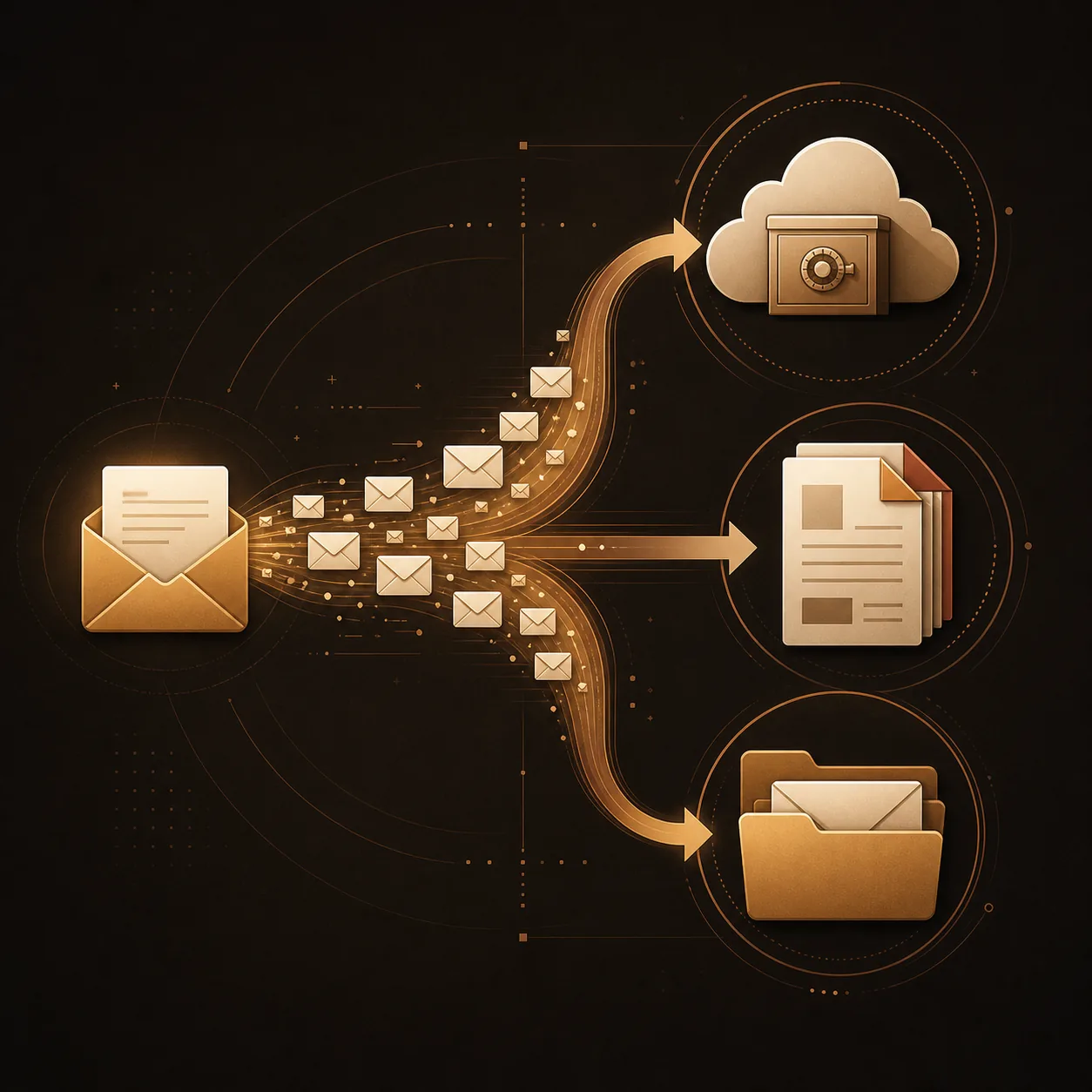
For all or most of a mailbox, begin with Google Takeout. For one message or a conversation that needs to be read or shared, Gmail Print is usually simpler. For selected batches, choose a browser workflow that makes separate files, merged output, attachment handling, and failures clear.
- All or most Gmail data: Google Takeout is the broadest starting point.
- One message or thread: print or save the rendered conversation as PDF.
- Selected messages in a batch: use a local workflow with an explicit completion report.
- Migration to another mail system: prefer a format and client that the destination supports.
Useful starting points
Define the job
What does it mean to export Gmail emails?
An export is a copy of selected email data placed into a format or destination you can use outside the normal Gmail view. The practical choice is not only how to download Gmail emails, but also whether you need searchable records, original message data, a migration package, or a small set of files for a human reviewer.
Before you start, write down the message scope, destination, attachment requirement, and privacy boundary. This prevents a common mistake: creating a beautiful PDF when you actually needed a complete archive, or creating a large archive when you only needed three conversations for a case file.
| Goal | Best starting route | What to expect |
|---|---|---|
| All or most mailbox data | Google Takeout | Broad archive for portability, backup, or migration; not a polished PDF set. |
| One message or thread | Gmail Print | Readable PDF of the rendered conversation, with print settings to review. |
| Selected messages as PDFs | Local browser export | Separate or merged PDFs can be convenient; verify batch scope and attachments. |
| Move into another mail app | Supported mail client or archive format | Check the destination's supported format, labels, dates, and attachment behavior. |
| A small evidence or project set | PDF plus original attachments | Easy to review, but keep the source message and originals until checked. |
Method 1
Export all Gmail emails with Google Takeout
Google Takeout is the natural route for a broad Gmail export. It is designed around downloading account data, so it is a better fit for mailbox portability, archival work, and migration planning than for producing a neat PDF for each conversation.
Expect a larger archive and allow time for Google to prepare it. Review the delivery method, file size, retention window, and destination before you begin. If the mailbox is large, test the archive with a small set of messages or confirm how the destination system will read the exported format.
- Select Gmail rather than exporting every Google service by default.
- Review the available export format and archive-size choices before creating the export.
- Keep the downloaded archive in a controlled location and protect it like mailbox data.
- Use Takeout for broad portability; do not expect it to replace a readable PDF workflow.
Open Google Takeout
Sign in to the Google Account that owns the mailbox, open the data-export page, and review the products selected for export.
Choose Gmail and delivery settings
Select Gmail, then check the export frequency, delivery destination, archive type, and maximum file size before continuing.
Create and review the archive
Start the export, download the archive from the delivery message, and inspect a sample before treating it as a complete backup or migration source.
Method 2
Save one Gmail message or conversation as a PDF
When the goal is a readable record, Gmail Print is often the shortest path. Open the message or conversation, make sure the content you need is expanded and loaded, choose Print, then select Save as PDF in the system print dialog.
A PDF captures the rendered view, not every piece of mailbox metadata. Check page breaks, headers, footers, remote images, and the conversation scope. Keep the original message until the PDF has been opened and reviewed.
- Use the message or conversation print action instead of printing an unrelated inbox view.
- Expand the replies and wait for important images or quoted content to load.
- Review paper size, scale, margins, headers, and footers before saving.
- Use descriptive filenames so the PDF can be found without opening it.
For a PDF-specific walkthrough
Method 3
Bulk export Gmail emails for selected messages
Bulk export is useful when the job is bigger than one print action but smaller than a complete mailbox archive. The important distinction is selected scope: search or label the conversations you need, confirm the count, and use a workflow that processes the chosen set locally in the browser.
A good batch workflow should tell you whether it creates separate PDFs, one merged PDF, a ZIP of original attachments, or a combination. It should also surface skipped messages, failed conversions, and browser limits instead of leaving you to guess whether the export finished.
- Use a narrow Gmail search or label before selecting messages.
- Start with a small sample when the batch contains long threads or large attachments.
- Decide between separate PDFs for sorting and a merged PDF for reading or sharing.
- Keep the completion summary and review a few files before deleting source mail.
Prepare the selection
Use Gmail search, labels, or the inbox to identify only the conversations that belong in this export. Confirm the visible selection before starting.
Choose the output
Select separate files, a merged PDF, or the attachment option that matches the project. Avoid mixing a small record set with an unbounded mailbox export.
Review the result
Open a sample of the PDFs, compare the count with the selection, and check attachment and failure reports before closing the source workflow.
Compare the local PDF workflow
Methods 4 and 5
Use local files or a mail client for migration work
Some people searching for how to export Gmail emails are preparing to move messages into another mailbox or desktop mail application. In that case, the destination matters more than the prettiest output. Confirm which formats the destination supports, how it handles labels and dates, and whether attachments remain available.
A local file workflow can be practical for a small set, while a mail client may be better for repeated migration or search across a large archive. Avoid treating a PDF as a substitute for a mail format when you need replies, labels, timestamps, or message-level metadata to remain machine-readable.
- Check the destination application's supported import format before downloading a large archive.
- Preserve the original export until the destination has been tested with representative messages.
- Separate human-readable records from machine-readable migration data.
- Document what was moved, what was skipped, and where the original archive is stored.
Quality check
Check attachments, privacy, and export limits
Attachments are where many Gmail exports become misleading. A rendered PDF can show that an attachment existed without preserving the original file in a usable form. If the original document matters, download it separately or choose an export workflow that clearly documents how original attachments are packaged.
Also review the privacy boundary. Email exports can contain personal data, invoices, contracts, and private conversations. Store archives and PDFs in a location with appropriate access control, avoid unnecessary copies, and keep the source messages until your sample review is complete.
- Open a sample PDF and compare it with the Gmail message, including collapsed replies and images.
- Open a sample original attachment separately; do not assume a PDF contains the original file.
- Check filenames, page count, merged order, and failed-item reports for a batch.
- Remove temporary exports only after the destination and the retained record have been checked.

Read the privacy boundary
Decision table
Which Gmail export method should you use?
If you are still comparing methods, use the smallest workflow that satisfies the actual job. A complete mailbox export is valuable when portability matters, but it is unnecessary for a handful of readable conversations. Conversely, a PDF is convenient for review but should not be the only copy when future migration or machine search matters.
When in doubt, keep two layers: a broad archive for preservation and a small, clearly named PDF set for people who need to read or share the selected record.
| If you need… | Choose… | Why |
|---|---|---|
| Every message or broad portability | Google Takeout | It is designed for account-data export and archiving. |
| One readable message or thread | Gmail Print to PDF | Fastest path with the fewest moving parts. |
| A selected batch of readable records | Local bulk PDF workflow | Better for a controlled subset and repeatable review. |
| A migration into another mail app | Destination-supported mail format | Preserves more message structure than a PDF. |
| A defensible project file | PDF plus original attachments and notes | Keeps the human-readable record tied to the source files. |
Continue with the relevant workflow
FAQ
Questions about exporting Gmail emails
What is the easiest way to export Gmail emails?
Use Google Takeout for a broad mailbox export. Use Gmail Print for one message or conversation, and a local batch workflow for selected messages that need separate or merged PDFs.
Can I export Gmail emails to PDF?
Yes. Gmail Print can create a PDF for a message or conversation. For batches, confirm how the workflow handles selection, merged order, failed items, and original attachments.
Does Google Takeout export Gmail as PDF?
Usually no. Takeout is intended for broader account-data export. Choose PDF when people need a readable record rather than a full mailbox archive.
How do I download all emails from Gmail?
To download all emails from Gmail, use Google Takeout, select Gmail, review delivery and archive settings, create the export, and inspect a sample of the downloaded archive before relying on it.
Are Gmail attachments included when I export emails?
Not always in the original form. A PDF may show the message without preserving the attachment file, so download or archive important originals separately and review the result.
Is exporting Gmail emails the same as backing up Gmail?
No. An export is a point-in-time copy. A backup process also needs a repeat schedule, protected storage, access rules, and a plan for future messages.
Bottom line
Export the right Gmail record for the job
Use Google Takeout when you need broad Gmail data, PDF when you need a readable selected record, and a destination-supported mail format when you are migrating. For a controlled batch, confirm the selection, attachment behavior, privacy boundary, and review step before deleting the source.
The most reliable Gmail export is not the largest one. It is the smallest verified output that preserves the scope, format, and context your next step actually needs.
Need selected Gmail emails as PDFs?
See how PDF My Email handles selected conversations, separate or merged PDFs, attachments, browser processing, and plan limits.
View Gmail to PDFOfficial references
- Google Account Help: Download your dataOfficial guidance for creating a Google data export with Takeout.
- Gmail HelpOfficial Gmail help for message actions, printing, and mailbox workflows.