
Start here
How to export Gmail emails by label to PDF: practical steps
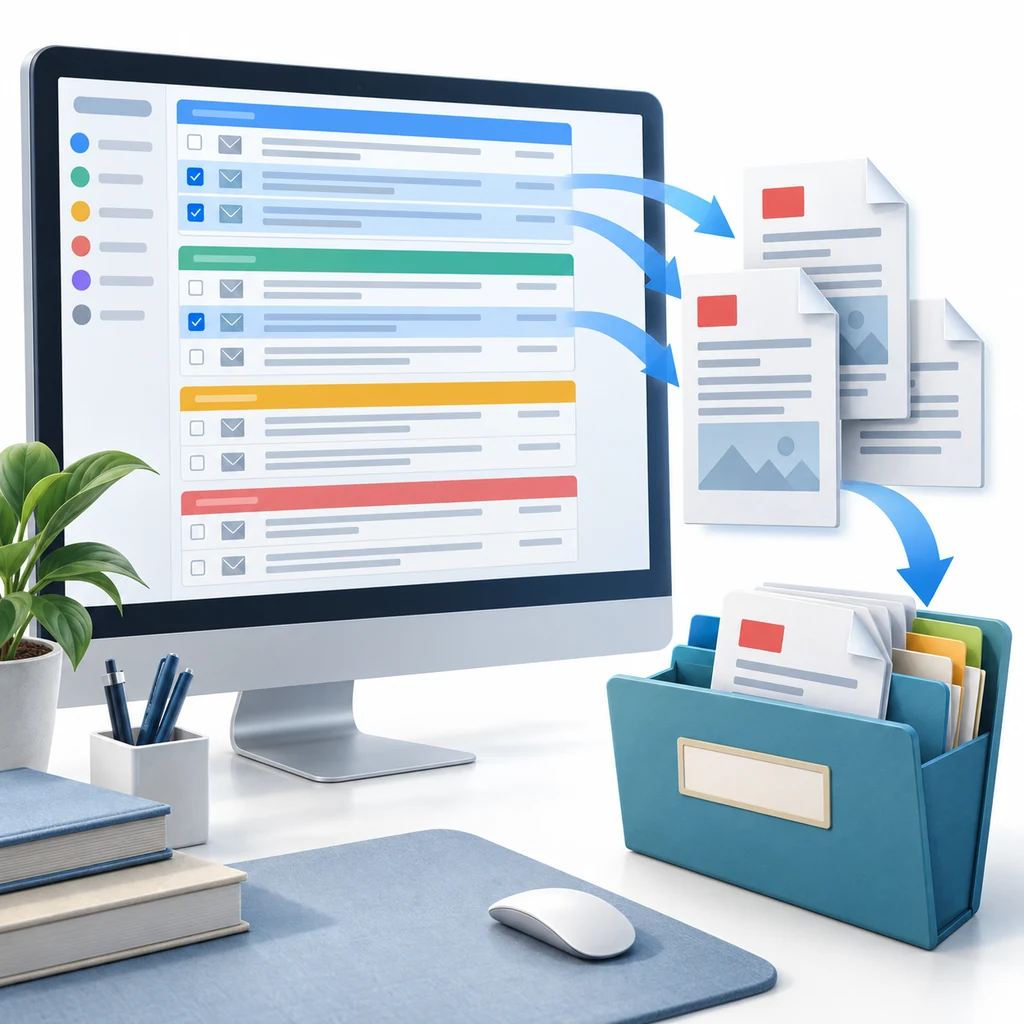
A Gmail label is a useful way to group invoices, approvals, client conversations, travel records, or project decisions, but the label is not a single document. It is a view over messages. To export Gmail emails by label to PDF, open the label, define the exact set of conversations, choose the output format, and check the result before moving it into long-term storage.
- Use the label to narrow the working set, then verify the selected message count.
- Choose separate PDFs for independent records and a merged PDF for sequential reading.
- Keep original attachments when the PDF alone cannot preserve the source file.
Step 1
Prepare the Gmail label before you export
Start by checking what the label actually contains. Gmail labels can be applied to individual messages and to conversations, and the same conversation may appear in more than one organizational view. A label named “Invoices” may include a receipt, a follow-up question, and a duplicate forwarded message. Decide whether all of those belong in the PDF archive before you select anything.
If the label is too broad, refine the view with Gmail search. Search can combine a label with a sender, date, subject phrase, attachment condition, or file name. The goal is not to create a clever query for its own sake; it is to make the selection explainable later. A future reviewer should be able to understand why the messages were included.
Open the label
Open the Gmail label and scan the visible conversations. Check whether the label mixes different projects, years, senders, or record types.
Refine the view
Use Gmail search with the label when you need a narrower date, sender, subject, or attachment boundary. Save the query in your work notes if the selection needs to be reproducible.
Decide the record scope
Write down whether you need the current message, the full conversation, or only selected conversations. This prevents an accidental thread expansion from changing the record set.
Step 2
Select conversations without losing context
When the label is ready, select the conversations that form the useful record. If a message belongs to a long thread, decide whether the whole conversation is necessary. A final approval may be meaningless without the request and the clarification that came before it, while a simple receipt may not need every quoted reply. The right scope is a records decision, not just a printing setting.
Pay attention to pagination and conversation grouping. A visible page may show only part of a label, and a conversation row may represent several messages. If you need every message in a period, work from a search result or selection count rather than assuming the first screen is complete. Do not begin a large export until the scope is stable.
Check the selection count
Confirm how many conversations are selected and whether Gmail is showing conversations or individual messages. Recheck after changing the page or search filter.
Expand important threads
Open or expand conversations where earlier replies, approvals, or attachments provide necessary context. Wait for the message body and images to finish loading.
Separate unrelated records
Remove duplicates, personal messages, and unrelated follow-ups before exporting. A smaller clean batch is easier to review than a large mixed archive.
| Scope | Useful when | Main risk |
|---|---|---|
| Current message | A receipt, notice, or final reply stands alone | Earlier context may be missing |
| Full conversation | The decision depends on the thread history | Quoted replies and page count can grow quickly |
| Selected conversations in a label | You need a project or client batch | A broad label can include unrelated records |
Step 3
Choose separate PDFs, a merged PDF, or a PDF plus attachments
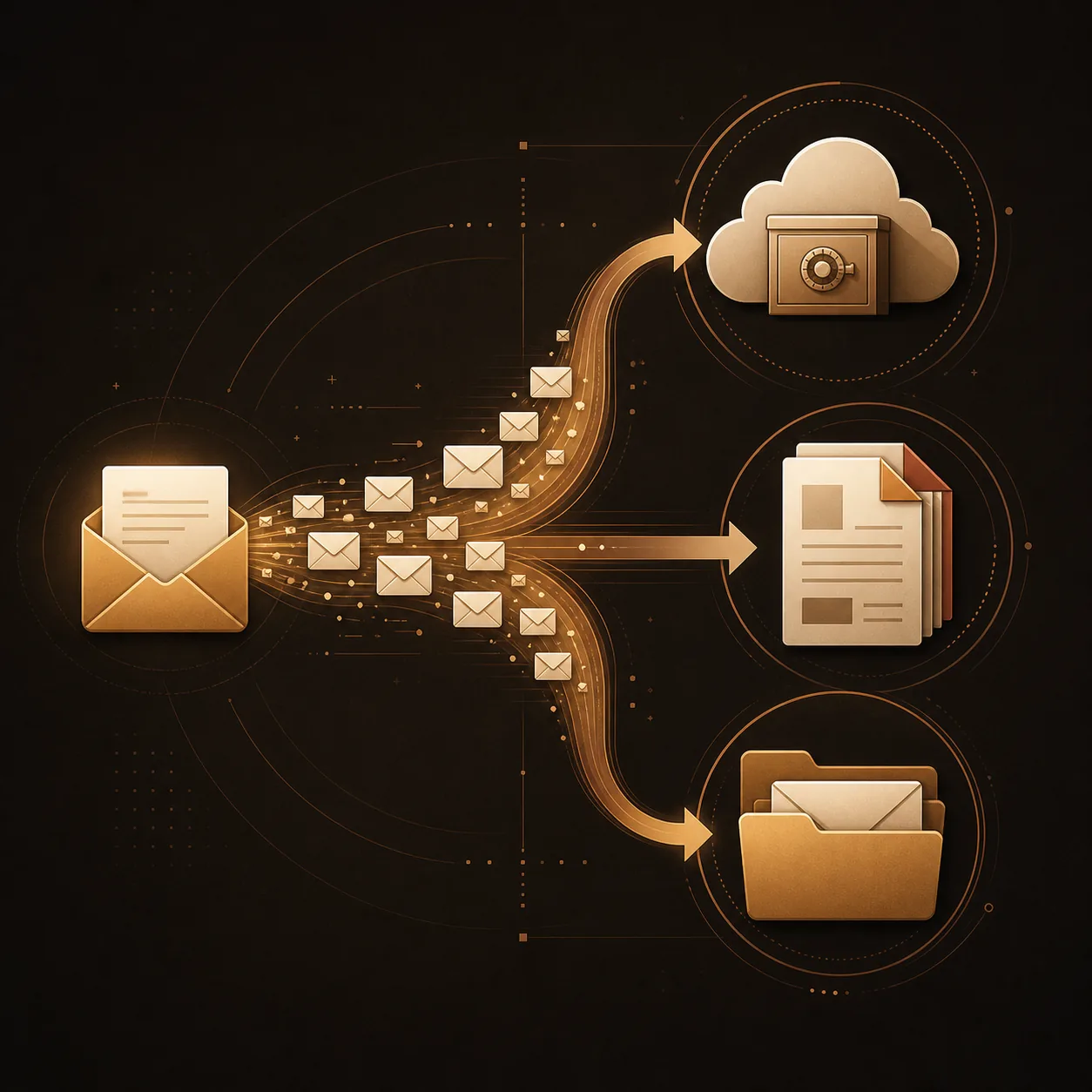
Once the messages are selected, choose an output that matches the way the records will be used. Separate PDFs make it easy to file one conversation under one name and replace a failed item without rebuilding the whole batch. A merged PDF is convenient when someone needs to read the label as a single chronological packet, but it can become long and harder to correct.
A PDF is a rendered view of the email. It is not automatically a copy of every original attachment. If a message contains a spreadsheet, an Office document, a ZIP file, or a high-resolution image, keep the original file beside the PDF unless your approved workflow explicitly supports appending or packaging it. The filename and folder structure should make the relationship obvious.
- Separate PDFs: best for independent invoices, approvals, cases, or client records.
- Merged PDF: best for sequential reading, review meetings, or a short chronological packet.
- PDF plus original attachments: best when the source files matter as much as the message text.
Compare the wider export choices
Step 4
Review the label export before you file it
Do not treat the download completing as proof that the archive is complete. Open at least one PDF from the beginning, middle, and end of a larger batch. Check the sender, recipients, date, subject, conversation order, page breaks, inline images, quoted content, and attachment names. If the output is a merged document, confirm that the order still follows the way people will read the record.
Keep a short completion note for the batch: label or search boundary, number selected, number completed, number failed, output location, and review date. Avoid placing full subjects or message bodies into analytics events. A local report with a neutral batch name is enough for most personal workflows, while formal retention work should follow the organization's approved records process.
- Check that important images, tables, signatures, and quoted replies are visible.
- Compare attachment names and original files; do not assume a PDF contains every source file.
- Keep failed items visible and retry them before declaring the label export complete.
Privacy and limits
Exporting a label is not the same as backing up Gmail
A label-based PDF export is a point-in-time copy of selected messages. It does not automatically preserve the rest of the mailbox, future replies, message metadata that is not rendered, linked web content, or every original attachment. If you need a broad account-data archive, review Google's official export options instead of stretching a PDF workflow beyond its purpose.
Privacy depends on the route you choose. Gmail Print keeps the visible rendering in the browser's print path. An online converter may require an upload. A browser extension may process selected content locally but still request permissions for Gmail interaction, downloads, identity, or PDF generation. Treat those boundaries as part of the product decision, especially for legal, financial, human-resources, or customer data.
- Do not upload confidential messages to a converter unless the policy allows that handling.
- Review browser extension permissions and the stated data boundary before a sensitive export.
- Store the output in a location with appropriate access and retention controls.
| Need | Better fit | What to verify |
|---|---|---|
| A few readable records | Gmail Print | Rendered content, page settings, and attachments |
| Selected label batch | Local batch export | Selection, progress, failures, filenames, and privacy |
| Original non-PDF files | PDF plus attachment package | Source filenames, file integrity, and folder permissions |
Read the product boundary
Troubleshooting
Common Gmail label PDF export problems
When a label export looks wrong, diagnose the scope before changing random print settings. The issue may be a selection boundary, a collapsed conversation, a page that was not loaded, a blocked remote image, a large batch, or an attachment rule that was never enabled. Fixing the cause is more reliable than repeatedly downloading the same output.
- Missing conversations: confirm the label search, page range, and selected count.
- Missing replies: expand the thread and decide whether conversation scope is required.
- Blank or incomplete images: wait for the message to finish loading and review the PDF again.
- Attachment not in the PDF: keep the original file separately or choose a workflow that documents appending support.
FAQ
Questions about exporting Gmail emails by label
Can I export every email in a Gmail label to PDF?
You can select messages from a Gmail label and export the selected set as PDFs. Gmail's standard Print flow is manual, so a large label needs a batch workflow and a review of completed and failed items.
How do I save a Gmail label as a PDF?
Open the label, select the messages you need, choose a PDF export workflow, and review the output. A label is a Gmail organization view; it is not itself a single printable document.
Does exporting a Gmail label include attachments?
The PDF usually represents the rendered email. Original PDF, image, Office, or archive attachments may remain separate, so confirm the workflow's attachment behavior and keep important originals beside the exported records.
Can I export a Gmail label without exporting my whole mailbox?
Yes. Selecting messages from one label limits the working set. Google Takeout is designed for broader account-data exports, while a label-based PDF workflow is better for a chosen project, client, or record group.
Bottom line
Use the label to select, not to skip the review
To export Gmail emails by label to PDF, narrow the label, confirm the conversation scope, choose separate or merged output, preserve important originals, and review the completion report. A label makes selection easier; it does not decide what the final record should contain.
The best archive is the smallest verified set that a future reader can understand. Keep the source messages until the PDFs and attachments have passed that check, and use an approved broader backup process when the real requirement is the whole mailbox.
Export selected Gmail conversations?
See how PDF My Email handles selected conversations, separate or merged PDFs, attachments, browser processing, and plan limits.
View Gmail to PDFOfficial references
- Google Account Help: Download your dataOfficial guidance for broad Google account data exports and Takeout choices.
- Gmail HelpOfficial Gmail help for labels, message actions, search, and printing workflows.