

Start here
The safest way to export Gmail emails for legal evidence
Start by defining the smallest Gmail search that answers the question in your matter. Record the account, date range, sender or recipient filters, labels, and any message IDs or subject terms you used. Then open representative results and confirm that the visible thread is the one you intend to preserve. A search result count is not proof that every relevant message was found.
For each selected conversation, expand the replies that provide context, wait for important images to load, and export a readable PDF. Keep original attachments in their received formats, use stable filenames, and write a short scope note that another person can follow. The result is a reviewable working copy, not an automatic declaration that a court will admit it or that the mailbox has been fully preserved.
- Search narrowly first, then document how the scope could be widened or repeated.
- Keep the source Gmail account and original files available until review is complete.
- Export separate PDFs when each conversation is an independent record; merge only when sequence matters.
- Ask counsel or your records team about preservation and admissibility requirements.
Start with the general workflow
Step 1
Define the Gmail evidence scope before you export
A useful export begins with a question, not a download button. Write down what the reviewer needs to establish: a request and response, an approval, a delivery date, an invoice discussion, a change to contract terms, or the history of an account decision. The question determines whether you need one message, a complete thread, messages from a label, or the original attachments as well.
Use Gmail operators and labels to make the selection reproducible. A query such as from:, to:, after:, before:, subject:, label:, has:attachment, or in:anywhere can narrow the first pass. Save the exact query as plain text in the matter folder. If the result is large, make a dated sample and ask the reviewer to confirm the scope before processing everything.
- Record the Gmail account or mailbox owner without placing private account data in a public page or filename.
- Separate relevant threads from duplicates, forwarded copies, drafts, spam, and unrelated messages.
- Keep the query and a result-count snapshot next to the export so the selection can be repeated.
Step 2
Prepare each Gmail thread so the PDF shows the needed context
Open the message rather than relying on the truncated inbox row. A thread can contain an earlier request, a later correction, quoted text, signatures, and attachments that are not visible in the newest reply. Expand the replies that matter and decide whether quoted history is context or repeated noise. If a part of the conversation is not available to the account, record that limitation instead of silently presenting the export as complete.
Let inline images and important content finish loading before printing. Check the sender, recipients, subject, dates, and visible message body. If the page uses a collapsed section, a clipped table, or a remote image that cannot load, capture the issue in the review log and try a controlled re-export. The goal is a readable rendering whose gaps are known, not a polished PDF that hides uncertainty.
Open the complete conversation
Use the conversation view and expand the messages required to answer the matter's question. Note any replies that are missing, collapsed, or outside the account's access.
Check identity and timing
Review sender, recipients, subject, dates, timezone context, and the visible body before you print. Do not rely only on a search snippet.
Check attachments and images
Confirm that each relevant attachment is present and that images, tables, and quoted content are rendered. Save a note when a resource cannot load.
Step 3
Export separate or merged PDFs with a predictable workflow
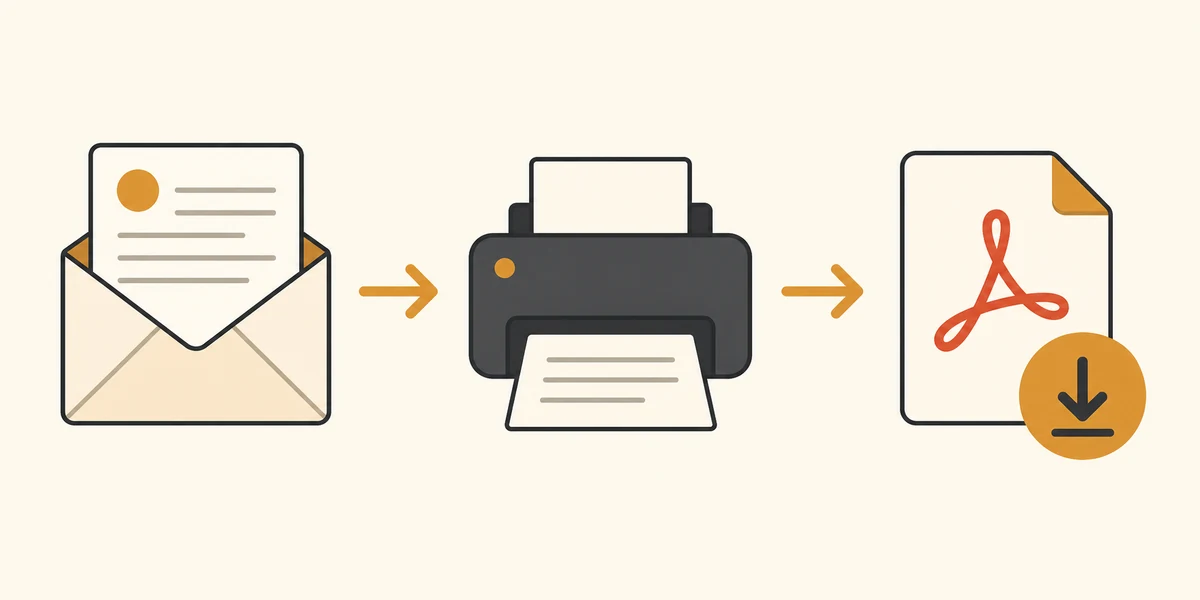
For one conversation, Gmail Print can create a PDF without sending the message to an online converter. Choose Save as PDF in the browser dialog, review paper size and scale, and remove headers or footers only when doing so does not remove useful context. Open the saved file and check the first, middle, and last pages before moving on.
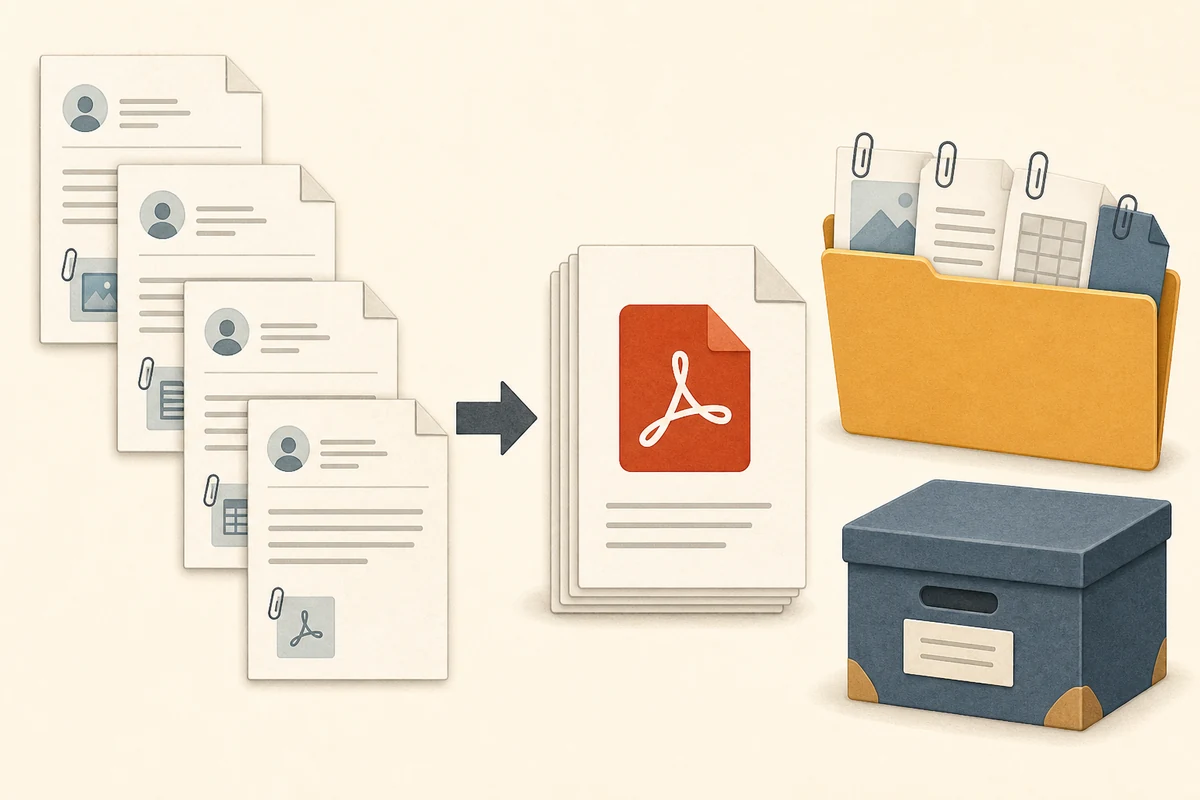
For a selected batch, use a workflow that shows the selected count, reports failures, and lets the operator cancel. Separate PDFs map cleanly to review notes; a merged PDF needs an explicit order and sample review.
PDF My Email processes user-started selected exports in a compatible desktop Chromium browser. Results still depend on Gmail access, browser memory, message rendering, and your preservation rules.
- Use a consistent date or sequence prefix so files sort in the intended order.
- Keep a separate failure report when a selected message cannot be rendered.
- Review the PDF after export; a successful download does not prove complete content.
| Output | Good fit | Review point |
|---|---|---|
| One PDF per conversation | Independent records or per-thread review | Match every filename to a thread and scope note |
| One merged PDF | Chronological reading or a small hearing bundle | Confirm ordering, page breaks, and failed items |
| PDF plus original attachments | Messages that refer to contracts, invoices, or files | Keep originals in their received formats |
| ZIP of the export | Moving a controlled set between reviewers | Use an index and access-controlled storage |
Compare related export choices
Limits and privacy
What a Gmail PDF export does not prove
Exporting a Gmail conversation creates a readable copy. It does not by itself prove authorship, authenticity, completeness, chain of custody, retention, or admissibility. Those questions depend on the facts, the court or regulator, the applicable rules, and the collection method. Do not describe a browser PDF as a certified legal record unless a qualified person and your process support that description.
Privacy is part of the workflow. Email can contain personal data, privileged material, payment information, and confidential attachments. Limit the selected scope, use access-controlled storage, do not upload files to an unapproved converter, and follow your organization's hold, retention, and deletion rules. PDF My Email separates browser-local message/PDF processing from account, plan, payment, and usage operations; read the current product disclosures before using it for sensitive work. If forensic metadata or mailbox-wide preservation is required, use an approved e-discovery or records process.
- Preserve the source account and original files until the responsible team confirms the retention plan.
- Do not put legal conclusions, passwords, or full message contents in filenames or public notes.
- Ask qualified counsel or a records specialist about jurisdiction-specific requirements.
Read the product data boundary
Troubleshooting
Fix common evidence-export problems before filing the bundle
If a PDF is missing replies, compare the source thread with the print view. Expand collapsed messages, check filters, wait for remote images, and record any gap instead of assuming a blank area was empty. If a batch stops, reduce the selection and run a controlled test; long threads and heavy attachments can exceed browser memory. Keep the failed-item list and compare any replacement with the source.
- Missing reply: expand the thread, verify the account, and record inaccessible messages.
- Blank image: wait for loading, retry once, and preserve a note if the resource remains unavailable.
- Large or mismatched export: split the batch, prefer separate PDFs, and compare filenames with the index.
Read the attachment-specific workflow
FAQ
Questions about Gmail evidence PDFs
Is a Gmail PDF automatically legal evidence?
No. A PDF is a readable export, not a finding of admissibility or authenticity. Preserve the source message and original attachments, document the export scope, and ask qualified counsel or your records team what the matter requires.
How should I export Gmail emails for a case?
Define a narrow, repeatable Gmail search; select and review the conversations; expand the context you need; export separate or merged PDFs; keep original attachments; and record the query, date range, selected count, filenames, and review steps.
Does PDF My Email upload message content?
PDF My Email is designed to process selected Gmail content and generated PDFs in the browser. Account, plan, payment, and usage operations are separate. Review the current Privacy Policy and extension permissions before using it for sensitive records.
What if a thread is missing replies or images?
Compare the source thread with the rendered print view, expand required replies, wait for images, check the search scope, and re-export a smaller sample. Keep the source message available until the result is reviewed.
Bottom line
Export a reviewable copy, then keep the limits visible
To export Gmail emails for legal evidence, define and record a narrow search, review each conversation, create readable PDFs, keep relevant original attachments, use stable filenames, and maintain a small review log. Separate PDFs are usually easier to map to individual records; a merged PDF is useful only when its order and completeness are checked.
Treat the result as a careful working bundle rather than a legal conclusion. Preserve the source account, follow your retention or legal-hold process, and involve qualified counsel or an approved e-discovery team when authenticity, forensic metadata, or complete mailbox preservation matters.
Need a controlled Gmail PDF export?
Review PDF My Email's selected-export workflow, local processing boundary, attachment options, and batch limits before using it with sensitive records.
View Gmail to PDFOfficial references
- Google Gmail Help: Search operatorsOfficial reference for Gmail search operators and query syntax.
- Google Gmail HelpOfficial Gmail help for message actions, attachments, and printing workflows.
- PDF My Email Privacy PolicyProduct-specific explanation of local email processing and separate account services.